Battery Usage by App: A Data-Driven Consumer Guide
Explore how apps impact battery life, learn to read per-app power data on iOS and Android, and apply practical, data-driven steps to curb drain today. A Battery Health guide for smarter power management.


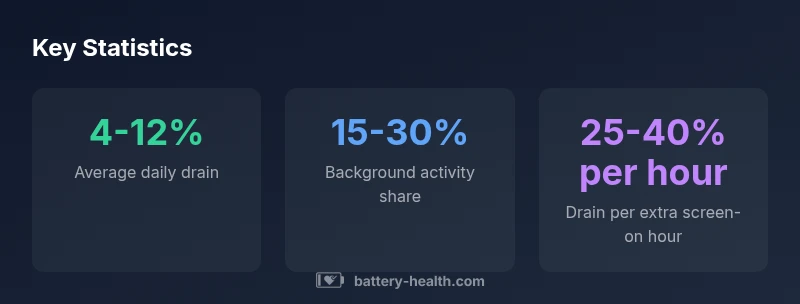
Battery usage by app describes how much power each app consumes on your device, usually shown as a per-app percentage or foreground/background time. By examining per-app data, you can identify drainers, compare platforms, and prioritize settings to extend battery life. According to Battery Health, most drain comes from background activity, location services, and high-refresh features.
What battery usage by app means for your device
Understanding battery usage by app is essential for consumers aiming to balance performance with longevity. When you look at per-app power data, you gain visibility into which programs are truly driving drain and when. The Battery Health team emphasizes that real-world experience matters just as much as raw numbers. By analyzing how apps behave across typical daily routines—browsing, streaming, gaming, messaging—you can craft targeted tweaks that yield noticeable gains without sacrificing essential functions. In practice, power data should be interpreted in the context of device hardware, display settings, and network conditions. Remember that a single high-drain event (like a video session) may skew a short snapshot, while long-term trends reveal more reliable patterns.
How operating systems measure app power consumption
Both iOS and Android expose per-app power metrics, though the presentation and data channels differ. iOS emphasizes energy impact graphs and summaries within Settings, while Android offers per-app usage data and background activity indicators in Battery or Developer Options. The underlying idea is consistent: monitor how long an app stays active, how much CPU work it performs, and how often it uses radios like cellular, Wi-Fi, and GPS. Battery Health analysis shows that aggregated trends are more actionable than isolated spikes, especially when comparing across days or app updates. When interpreting figures, note the measurement window and the device’s power mode settings, which can significantly shift results.
Common drivers of app-based drain
Several factors consistently contribute to higher power use by apps:
- Background activity: apps that refresh content or sync data in the background draw ongoing power.
- Location services: continuous or frequent location checks are energy-intensive.
- Network activity: frequent data transfers (especially with poor signal) increases energy use.
- Screen and graphics: high refresh rates, animations, and bright displays amplify drain.
- Media playback and sensors: video, AR, GPS, and motion sensors impact CPU and GPU workloads.
Understanding these drivers helps you prioritize fixes. For many devices, turning off background refresh, limiting location permissions, or reducing screen brightness yields substantial improvements without removing app functionality.
Reading per-app power data on iOS and Android
iOS
- Open Settings > Battery to view per-app usage with time since last charge and activity indicators.
- Look for apps with a high percentage of battery use relative to other apps.
- Consider the last 24 hours versus the last 7 days to distinguish transient spikes from sustained drain.
Android
- Go to Settings > Battery > Battery usage to see a list of apps ranked by power consumption.
- Tap an app to view foreground vs background activity, wake locks, and network usage.
- Review light or adaptive battery features that throttle background work for idle apps.
Battery Health recommends comparing periods like “today,” “yesterday,” and a rolling 7-day window to get a stable view of habitual drain rather than a single day anomaly. Early checks after a software update often reveal new culprits or improvements.
Methods to compare apps and identify drainers
To make sense of per-app power data, use structured comparisons:
- Time-window analysis: compare the same apps across 3–7 days to identify consistent patterns.
- Foreground vs background split: prioritize fixes for background activity when foreground drain is minimal.
- Platform cross-check: look for apps that perform poorly on both iOS and Android, which may indicate universal inefficiencies.
- Impact of settings: toggle features like location, push frequency, and high-refresh displays to quantify their effects on drain.
Use simple ratios such as drain per hour of active use, or drain per session, to normalize across apps with different usage profiles. This helps you target settings that yield the largest benefit with minimal disruption.
Practical strategies to reduce app drain
- Restrict background activity: limit background refresh and data syncing to essential apps.
- Optimize location usage: switch to “while using” instead of “always” where possible.
- Manage push notifications: disable nonessential alerts that wake the device frequently.
- Adjust display settings: lower brightness, enable dark mode, and shorten screen-on time.
- Update apps and OS: ensure efficiency improvements are included in the latest versions.
- Use battery saver modes during long sessions, especially while traveling or away from power.
- Review permissions: revoke access for sensors that aren’t necessary for core app functions.
- Consider offline-first workflows: download content for offline use to reduce real-time data transfers.
Context matters: what works for gaming may differ from streaming or productivity apps. Test a few changes, then monitor the impact over several days to confirm benefits.
Privacy, data considerations, and long-term monitoring
Power data can reveal how you use your device, which apps matter most, and when you’re most active. While OS tools provide aggregate insights, be mindful of any third-party apps with invasive permissions. Prefer built-in dashboards and trusted analytics that respect user privacy. For long-term monitoring, establish a monthly review cadence, track changes after app updates, and adjust settings as device hardware evolves. Battery Health highlights that transparent, minimal-data approaches tend to balance user privacy with actionable optimization insights.
Per-platform power data overview
| Platform | Power measurement approach | Visibility in OS | Notes |
|---|---|---|---|
| iOS | Per-app power reports and energy impact graph | High (Battery widget) | Limited access to raw data; shares via Settings app |
| Android | Usage access per app + battery historian | Moderate (Settings > Battery) | Variations across OEM skins; background activity limits |
| Web/Desktop apps | Browser/app power estimation via activity timers | Low (system-level data limited) | Rely on OS battery charts or developer tools |
FAQ
What is considered per-app power usage?
Per-app power usage refers to the amount of battery power consumed by an individual app, typically shown as a percentage of total drain or as foreground/background activity time. It helps you identify which apps are the main drains during a given period.
Per-app power usage shows which apps drain your battery the most, usually as a percentage or activity time.
Can I trust per-app battery data?
Per-app data is generally reliable for ranking drains, but interpretation should consider usage patterns, device power modes, and data collection windows. Cross-check across multiple days and after updates for consistency.
Yes, but compare data across several days and the device’s power modes to be confident.
What causes apps to drain more on background?
Background drain is driven by frequent background refreshes, location checks, and data syncing. Limiting these activities or adjusting permissions often yields substantial improvements.
Background activity—like refresh and location—drains power; limit these to save battery.
How often should I check battery usage by app?
Check battery usage data at least weekly during routine device use, and after app updates or OS upgrades to catch new drain patterns early.
Once a week is a good habit, especially after updates.
Does turning off background activity always help?
Turning off background activity helps, but it may degrade app functionality. Prefer selective restrictions, like limiting background refresh for nonessential apps.
Yes, but pick and choose which apps you restrict so you don’t lose features.
Are there privacy concerns with app power data?
Power data itself is less sensitive than content data, but some tools collect usage patterns. Use built-in OS dashboards and maintain minimal sharing of analytics with third parties.
Power data is generally less sensitive, but guard your privacy by using trusted, built-in tools.
“Understanding app-level power use helps users manage battery life more effectively and encourages developers to optimize energy efficiency.”
Quick Summary
- Identify the top draining apps and their drivers
- Use both foreground and background data for a full view
- Tune OS and app settings to reduce background activity
- Rely on multi-day trends for reliable insights
- The Battery Health team recommends a structured, privacy-minded monitoring approach