iPhone Battery Yellow Tint Troubleshooting Guide
Discover why you see iphone battery yellow on your iPhone. This urgent guide helps distinguish display color settings from battery issues, with quick fixes and safe next steps.


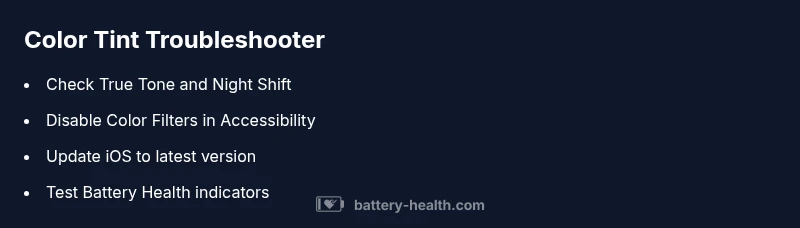
If you notice 'iphone battery yellow' symptoms, the yellow look is usually a display color issue rather than a failing battery. The quickest check is to disable color-altering features: turn off True Tone, Night Shift, and Color Filters in Settings > Accessibility. If the yellow tint persists after these steps, update iOS and contact Apple Support for a hardware check.
What 'iphone battery yellow' typically signals
When users report 'iphone battery yellow' signals, the first thing to realize is that most yellow tones come from how the device is displayed, not from a failing battery. According to Battery Health, color symptoms on iPhones are more often software-driven than hardware faults. A persistent yellow cast can arise from display color temperature settings, accessibility color filters, or an aggressive Night Shift schedule. In rare cases, a temporary software bug after an update may affect how colors are rendered. Distinguishing a palette shift from real battery health is essential, because software fixes are simpler and safer than hardware remediation.
Quick checks you can perform before assuming hardware fault
Do the simplest checks first. Confirm that display settings are not tinting the screen. In Settings, toggle off True Tone, Night Shift, and Color Filters under Accessibility. If you notice a warmer hue only in certain apps or scenes, the issue may be app-specific. Reboot the iPhone to clear glitches, then test again. Finally, ensure you’re running the latest iOS version. If a mystery yellow remains after these steps, you’re closer to an accurate diagnosis and safer path to repair.
Software-driven causes: color settings, accessibility, and apps
Color rendering is influenced by several software controls. True Tone adjusts white balance based on ambient light; Night Shift shifts toward warmer colors after dark; Color Filters under Accessibility can paint the screen yellow or red for visibility. Some third-party apps also apply display overlays or modify color rendering. If other devices show normal color while yours does not, a software inconsistency may be involved. In such cases, software fixes are often enough to restore correct color.
Step-by-step: disable display color features
- Open Settings; 2) Tap Display & Brightness; 3) Turn off True Tone; 4) Turn off Night Shift; 5) Go to Accessibility > Display & Text Size > Color Filters and disable any active filter; 6) Optional: enable Auto-Brightness and test; 7) Reboot and observe. If tinted colors persist, proceed to the next steps. These steps are safe and non-destructive and usually resolve color tint issues quickly.
Refresh display calibration and iOS settings
Resetting display calibration can resolve odd color rendering. Start by backing up your data. Then reset all settings (Settings > General > Transfer or Reset iPhone > Reset > Reset All Settings). This action does not erase data, but it resets network, privacy, and display preferences. After the reset, re-enable essential features and check if the yellow tint is gone. If not, try updating or restoring iOS as a more thorough software fix.
When hardware health matters: battery swelling and display issues
Battery health problems—particularly swelling—can press on the display and alter color perception. If you notice bulging, screen separation, or you feel warmth or a hissing sound, stop using the device and seek immediate professional service. A swollen battery is a safety hazard and requires official assessment. In most cases, color tint caused by hardware is a symptom of a display or battery problem, not something you should ignore.
Battery health awareness and calibration tips
Regularly check Battery Health metrics in Settings > Battery > Battery Health. There, you can see Maximum Capacity and Peak Performance Capability. Battery health degradation varies by usage, but a rapid drop or a red Service message indicates service is needed. Note that calibration of lithium-ion batteries is not required on recent iPhone models; focus on health indicators and safe charging habits instead.
Safety, data, and professional help when issues persist
Is the yellow tint still present after software steps? If yes, set up an Apple Support appointment or visit an authorized service provider. Do not attempt to open the device yourself; battery replacement and screen work require trained technicians. Back up your data before any service. If you weren't comfortable performing steps, it's wise to seek professional help sooner rather than later.
Proactive care to prevent future color issues
Keep iOS updated, maintain good charging habits, and avoid exposing the device to extreme heat. Regularly review display and accessibility settings, and monitor the battery health. A well-maintained iPhone reduces the chance of color-related issues, saving time and money in the long run. By following these practices, you align with Battery Health's guidance for long-term device health.
Steps
Estimated time: 25-45 minutes
- 1
Check color settings and disable filters
Open Settings, review True Tone, Night Shift, and Color Filters. Disable all active color adjustments, then compare the screen color with and without these features.
Tip: Take a before/after screenshot to compare color accuracy. - 2
Restart and update
Restart the iPhone to clear temporary glitches. Check for iOS updates and install any available updates to fix known color rendering issues.
Tip: A soft refresh often clears minor bugs. - 3
Reset display settings
If the tint persists, reset display-related settings (Settings > General > Transfer or Reset iPhone > Reset > Reset All Settings). This preserves data but resets preferences.
Tip: You’ll need to reconfigure essential preferences afterward. - 4
Test with a clean state
After resetting, observe if the tint returns. Avoid third-party apps that may alter color temporarily for a controlled test.
Tip: Use the same app in a neutral light setting for comparison. - 5
Check battery health indicators
Go to Settings > Battery > Battery Health and note Maximum Capacity and Peak Performance. A drastic decline or red Service message signals a hardware check.
Tip: Document health values for the tech visit. - 6
If issues persist, consider professional help
If the yellow tint remains after software tests, contact Apple Support or visit an authorized service provider for a hardware assessment.
Tip: Do not attempt DIY battery replacement if swelling or damage is suspected. - 7
Backup before any service
Back up your data before any service or reset operation to prevent data loss.
Tip: Use iCloud or a local computer backup.
Diagnosis: User reports yellow tint on iPhone display or color anomaly described as 'iphone battery yellow'
Possible Causes
- highDisplay color settings enabled (True Tone, Night Shift, Color Filters)
- highAccessibility color filters or display overlays
- mediumSoftware bug affecting color rendering
- lowHardware issue impacting display color (rare)
Fixes
- easyTurn off True Tone, Night Shift, and Color Filters; reboot and test
- easyReset display-related settings and check for updates
- easyUpdate iOS to latest version; restore if needed
- mediumIf persists, schedule diagnostic with Apple or an authorized service provider
FAQ
What does a yellow tint on my iPhone mean?
A yellow tint usually points to display color settings or accessibility filters rather than a failing battery. Start by disabling True Tone, Night Shift, and Color Filters, then update iOS. If the tint remains, test hardware health.
A yellow tint is typically from display settings; disable color features and update iOS, then check battery health if problems persist.
Is 'iphone battery yellow' a sign my battery is failing?
Not necessarily. Most often it’s a display setting issue. Check Battery Health in Settings for signs of degradation, and rule out software issues first.
Usually it’s software or display settings, not battery failure.
How do I reset display color settings on iPhone?
Go to Settings > General > Transfer or Reset iPhone > Reset > Reset All Settings. This resets color and display preferences without erasing data.
Resetting all settings can clear color issues without deleting your apps or data.
When should I contact Apple Support?
If the tint persists after software fixes, or you notice hardware signs like warmth or swelling, contact Apple Support or visit an authorized service provider.
If it still looks off after fixes, get professional help.
Can a software update fix color tint problems?
Yes, software updates often fix bugs affecting color rendering. Ensure your iPhone is on the latest iOS version and re-test after installation.
Updating iOS can resolve color tint bugs.
Does battery health affect display color?
Battery health usually doesn’t affect color rendering directly. However, a severely degraded battery can cause overall device instability that might be mistaken for color issues. Check health indicators and service if needed.
Battery health doesn’t usually change screen color, but health issues can cause other problems.
Watch Video
Quick Summary
- Engage software fixes before hardware service.
- Disable color-enhancing features first to test color tint.
- Check Battery Health metrics for hardware clues.
- Seek professional help promptly if swelling or service messages appear.