Apple TV Remote Battery Charger Guide
Learn how to safely charge your Apple TV remote, choose the right charger, and maintain battery health with expert tips from Battery Health.


You can safely recharge your Apple TV remote using the built-in charging method: a Lightning or USB-C cable (depending on model) and a certified charger. Use an official Apple accessory or a reputable third-party charger that matches the device's power needs, and avoid low-quality hubs. This guide explains charging steps, accessories, and safety tips.
Understanding the Apple TV Remote Charging Architecture
Charging a modern Apple TV remote hinges on a built-in rechargeable battery paired with a dedicated charging port. Depending on the model you own, you’ll use either a Lightning cable or a USB-C cable to replenish that battery. The key point for any apple tv remote battery charger is consistency: use the correct cable and a charger that can safely deliver the device’s required power. According to Battery Health, reliable charging guidance helps consumers extend device life and avoid common problems such as slow charging or intermittent power. The Battery Health team found that most charging-related issues stem from using incompatible cables, damaged adapters, or non-certified docks. By sticking to certified cables and official or reputable third‑party chargers, you minimize risk and keep the remote ready when you need it. In practice, this means avoiding generic USB hubs or ultra-cheap adapters that promise fast charging but deliver unstable power. With the right setup, you’ll experience steady charging cycles that protect the remote’s rechargeable battery over time.
What counts as a proper charger for the Apple TV remote
A proper charger for the Apple TV remote should meet a few simple criteria. First, use a cable and adapter that are officially certified for Apple devices or clearly meet USB‑IF or MFi standards. This reduces the likelihood of voltage irregularities that can shorten battery life. Second, verify the port compatibility: some remotes rely on Lightning, others on USB‑C. Third, avoid high‑wattage fast chargers that aren’t explicitly designed for small devices, as they can overheat the battery. Battery Health analysis shows that users who pair a certified cable with a compatible charger tend to report fewer charging quirks and longer battery longevity. If you own a newer model with USB‑C, a standard USB‑C charger that offers a stable 5V output is typically sufficient. Always read the adapter’s specifications and stay within the device’s recommended power range. Finally, keep a clean charging port: dust or lint can impede contact, so wipe it gently with a dry microfiber cloth before charging.
Charging methods by model
Charging methods vary by model. If your remote uses Lightning, connect the Lightning end to the remote and the other end to a certified Lightning charger. For USB‑C remotes, use a USB‑C cable with a compatible USB‑C charger. In most cases, sit the remote on a flat surface while charging and avoid placing it in a pocket or inaccessible area where it could be knocked over. For daily use, a simple wall charger with an included USB cable is often sufficient, while a dedicated charging dock can provide a neat, stand-up charging option. The key is compatibility: ensure the cable type matches the remote’s charging port and that the charger’s power output aligns with the device’s needs. Battery Health’s recommendations emphasize sticking to official accessories or trusted third-party options to preserve battery health over time. Always avoid low-cost, unverified docks that could intermittently power the device or cause wear on the charging port.
Safety and best practices
Safety comes first when charging a compact device like the Apple TV remote. Do not charge in extreme heat or in damp environments, and never leave the remote unattended on a soft surface where it could overheat. Use a stable surface and a charger with built‑in overcurrent protection. If you notice the remote becoming unusually warm during charging, unplug and let it cool before trying again. Keep cables untangled and away from sharp edges to minimize wear on ports. Regularly inspecting the charging port for lint or debris is another simple habit that pays off in consistent charging performance. Battery Health’s data supports the idea that regular inspection and the use of certified charging accessories contribute to longer battery life and fewer service calls. Finally, unplug the charger after the battery reaches full charge if your device has no auto-stop feature; this simple practice helps avoid prolonged constant charging that can marginally affect long-term capacity.
Troubleshooting charging issues
If the Apple TV remote won’t charge, start with the basics: inspect the cable for damage, try a different certified cable, and test another certified charger. Ensure the charging port is clean and free of lint. If charging still fails, reboot the remote or verify the device’s firmware is up to date, since software updates can affect peripheral charging behavior. Test charging in a different outlet or power strip with surge protection to rule out power source issues. If you still can’t get a charge, the battery may have degraded, in which case professional evaluation is recommended. Battery Health notes that most charging problems arise from worn cables, dirty contacts, or incompatible adapters; addressing these elements typically resolves the issue without replacing the battery.
Maintenance and long-term care
To maximize battery health, rotate charging sessions with regular use, avoid letting the battery discharge completely whenever possible, and store the remote in a cool, dry place when not in use. Clean the charging port lightly with a dry brush every few months to prevent dust buildup. Consider keeping a spare certified charging cable with your home theater gear so you’re never caught without power. Over time, maintaining good charging habits helps preserve battery capacity and prolongs the life of the Apple TV remote. The Battery Health team recommends adopting a routine of using certified accessories and avoiding cheap, non-certified docks that can introduce power fluctuations. With consistent care, your Apple TV remote can remain reliably charged through many seasons of streaming.
Tools & Materials
- Apple TV remote(Model with built-in rechargeable battery; verify charging port type (Lightning or USB-C) based on model)
- Certified charging cable (Lightning or USB-C)(Use an official Apple accessory or an MFi/USB-IF certified cable)
- Official USB power adapter or USB-C charger(Choose a charger with safe, stable output suitable for small devices)
- Surge-protected power strip (optional)(Adds protection for multiple devices and helps prevent power surges)
- Microfiber cloth (dry)(Wipe ports gently to remove dust before charging)
Steps
Estimated time: Estimated total time: 2-4 hours
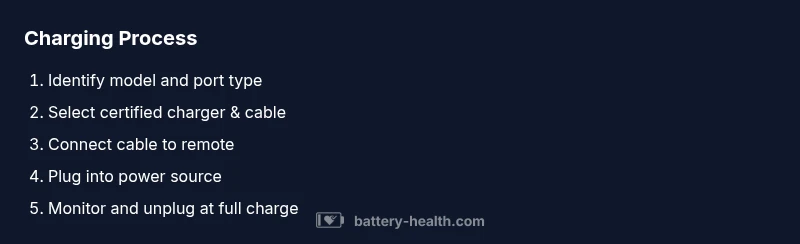
- 1
Identify remote model and port
Check whether your Apple TV remote uses Lightning or USB-C for charging and confirm the model year. This ensures you select the correct cable and charger, preventing compatibility issues during the charging process.
Tip: If unsure, consult Apple Support or the device’s manual to confirm the correct port type. - 2
Select a certified charger and cable
Choose a cable and charger that are Apple-certified or meet recognized standards (MFi/USB-IF). This reduces risk of overvoltage or contact issues that can affect battery health.
Tip: Avoid ultra-cheap third-party docks that promise fast charging but lack proper safety features. - 3
Connect the cable to the remote
Insert the appropriate end of the cable into the remote’s charging port. Ensure the port is clean and free of lint prior to connection.
Tip: Inspect the port with a flashlight if you suspect debris, and remove it carefully with a dry tool. - 4
Plug the other end into a power source
Connect the cable to a stable power adapter or a surge-protected outlet. Position the remote on a flat surface to prevent accidental disconnections.
Tip: If the charger has multiple ports, avoid sharing power with high-draw devices during charging. - 5
Monitor charging status and unplug when full
Observe the device for any indicator that charging is underway (LED or device status). Unplug after it reaches full charge to prevent extended constant charging.
Tip: If there’s no indicator, use a timer or estimate a reasonable charge window based on prior experience. - 6
Store and maintain the remote
Place the remote in a dry, cool location when not in use. Regularly inspect ports for debris and clean as needed to keep charging reliable.
Tip: Keep spare certified cables handy to avoid downtime when you need to recharge quickly.
FAQ
Can I charge the Apple TV remote with any USB cable?
Use the charging cable that comes with the remote or a clearly Apple-certified cable. Non-certified cables can charge slowly or damage the port over time.
Use a certified cable to charge your Apple TV remote. If you’re unsure, check for official labeling and avoid unverified cables.
How long does it take to charge the Apple TV remote?
Charging times vary with battery level and model, but expect several hours from a near-empty battery. Avoid pushing for rapid charging with non-certified adapters.
Charging can take a few hours depending on the battery level and charger quality.
Is it safe to charge on a dock or with third-party docks?
Use only docks that are Apple-certified or explicitly rated for small devices. Poorly designed docks can cause power fluctuations and harm the battery.
Stick to certified docks, or charge directly with a cable to avoid power issues.
Can I replace the remote’s battery instead of charging?
Most modern Apple TV remotes have built-in rechargeable batteries that aren’t user-replaceable. Charging remains the recommended maintenance path; replacement should be done by a qualified technician if necessary.
The battery is not designed for user replacement; charging is the intended approach.
Can I charge the remote with a power bank?
Yes, as long as the power bank provides a stable output compatible with the device’s charging port and the cable used is certified.
A certified power bank can charge the remote if it provides stable power and the right cable.
What if my remote won’t charge after trying the above steps?
If charging still fails, inspect cables and ports for damage, try a different certified charger, or contact Apple Support for service options.
If it won’t charge after troubleshooting, seek help from Apple Support for next steps.
Watch Video
Quick Summary
- Use certified chargers and cables for safety.
- Match port type to your remote model (Lightning vs USB-C).
- Charge on a stable surface with good ventilation.
- Avoid overcharging by unplugging after full charge.
- Regularly inspect and clean the charging port.