Phone Battery Health Check: A Step-by-Step Guide
Learn how to assess your phone battery health, interpret readings, and decide when to replace. This expert-backed guide from Battery Health covers built-in diagnostics, third-party tools, and practical tips to extend battery life.


You're here to learn how to check your phone's battery health and decide if a replacement is needed. Start with built-in diagnostics on iOS or Android, add a trusted third‑party app if you want deeper data, and track capacity and performance changes over time. According to Battery Health, regular checks help prevent surprise shutdowns and optimize charging habits.
Why Battery Health Matters for Your Phone
Battery health directly affects how long you can use your phone between charges, its ability to reach peak performance, and how reliably it operates under heavy workloads. A healthy battery delivers consistent power, preserves screen-on time, and reduces the risk of unexpected shutdowns during critical moments like navigation or video calls. According to Battery Health, aging lithium-ion cells gradually lose capacity and self-discharge rates can accelerate with heat and deep discharges. Keeping an eye on battery health is not only about avoiding inconvenience; it’s about extending the life of your investment and maintaining safe operating conditions. If you notice rapid changes in charging behavior, sudden drops in uptime, unusually warm temperatures, or swelling, these are warning signs you shouldn’t ignore. In the sections that follow, you’ll learn how to check health readings, interpret what they mean, and decide when a replacement is the best option. A systematic approach also helps you compare devices if you’re weighing a switch to a phone with a different battery chemistry.
Understanding Battery Health Readouts
Modern phones report battery health through a few core indicators. The most visible is a health percentage labeled something like Maximum Capacity, which estimates how close the current battery is to when it was new. Another important signal is a status indicator such as Peak Performance Capability, which tells you whether the phone can sustain demanding loads without automatic throttling. Some devices also show a charging curve or a history log of charge cycles. While the exact layout varies by OS, the underlying idea is the same: the battery’s ability to hold charge and deliver power over time declines with usage. While readings are informative, they are snapshots. Track them over weeks to identify trends, and consider factors like temperature and recent charging patterns that can sway results. Battery Health analysis notes that readings can fluctuate with temperature, background activity, and charging state, so interpret a single number with context.
How to Check Battery Health: The 3 Core Approaches
First, use built-in diagnostics. On iPhone, navigate to Settings > Battery > Battery Health to view Maximum Capacity and Peak Performance. On many Android devices, go to Settings > Battery > Battery Health or Device Care to find similar metrics. Second, run official manufacturer diagnostics if available; some brands offer self-testing tools in their support apps or online health check pages. Third, if you need deeper data or want to compare devices, you can use third‑party battery health apps. Choose reputable options and verify that readings align with OS data. In all cases, avoid unfamiliar software that asks for root access or device unlocks beyond normal permissions. The goal is a clear, honest read of capacity and behavior, not a collection of questionable metrics.
Quick Start: Run a Basic Health Check in 20 Minutes
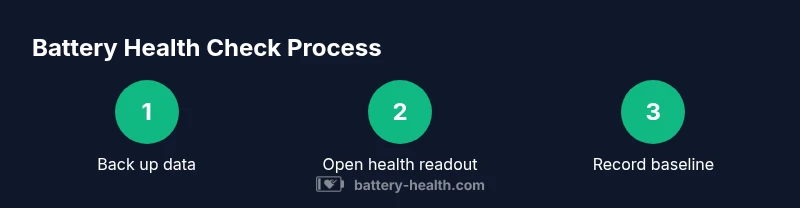
Start with a straightforward health check you can complete in about twenty minutes. Back up your data first using cloud or local backup. Then open the built-in battery health screen on your device (for example Settings > Battery > Battery Health on iOS or Settings > Battery on Android). Record the current Maximum Capacity and any notes about performance, such as slower charging or unexpected shutdowns. Do a quick, controlled recharge from a low level to full while watching for heat or swelling. If your device supports it, enable features like Optimized Charging or Battery Health Management. Compare today’s readings with a month ago to identify trends. Finally, decide whether to monitor for a few more weeks or begin exploring a replacement or service option.
Practical Tips to Extend Battery Life Immediately
- Lower screen brightness and shorten screen timeout to reduce power drain.
- Turn off unnecessary background apps and limit app refresh rates.
- Use Wi‑Fi instead of cellular when possible, and enable power-saving modes during long trips.
- Avoid extreme heat; never leave your device charging on a soft surface like a pillow.
- Enable built‑in charging optimizations (e.g., Optimized Charging) to reduce stress on the battery over time.
- Keep your operating system updated, since updates often include battery improvements.
- If you notice rapid wear, consider strategic charging: one full cycle per day instead of partial cycles.
AUTHORITY SOURCES
- National standards and safety information can be consulted at https://www.nist.gov/
- Government energy and consumer safety guidance available at https://www.energy.gov/
- General consumer guidance and battery reliability discussions at https://www.consumerreports.org/
When to Replace: A Simple Decision Framework
If Maximum Capacity consistently falls below a practical threshold, or if Peak Performance is throttled under normal use, replacement is worth considering. Weigh the cost of a new battery against the device’s age, performance needs, and other options such as manufacturer‑authorized service. Look for signs like swelling or physical damage, which can indicate safety risks. Battery Health recommends seeking professional service for any internal checks to avoid hazards.
Tools & Materials
- Smartphone (iOS or Android)(Device to test and log readings)
- Original or certified charger and cable(Used for controlled charging tests)
- Backup method (cloud or computer)(Back up data before diagnostics)
- Notebook or notes app(Log readings and dates for trend analysis)
- Third‑party battery health app (optional)(Use reputable sources only)
Steps
Estimated time: 30-45 minutes
- 1
Back up your data
Before testing health indicators, create a full backup of your phone’s data to avoid any loss if you need to reset or inspect issues more deeply.
Tip: Use cloud backup for quick recovery, or a local hard copy for offline safety. - 2
Open the built-in battery health screen
Access your device’s battery health readout: iPhone users go to Settings > Battery > Battery Health; Android users may find Battery Health or Device Care under Settings.
Tip: Note the Maximum Capacity and Peak Performance indicators for baseline years. - 3
Record current health metrics
Log the health percentage, performance status, and any warning messages you see. Keep this as your baseline for future comparisons.
Tip: If you can, take a screenshot for reference. - 4
Run a controlled charge test
Charge from a known low level (e.g., 20%) to 100% in a controlled environment, watching for heat and any unusual charging behavior.
Tip: Avoid fast charging if you want to observe gradual behavior. - 5
Test performance under load
Run a short, representative task (gaming, navigation, video streaming) to observe how the battery handles sustained power demand.
Tip: If the phone throttles performance, note the condition. - 6
Compare with a baseline
Review how today’s readings compare to your previous data to identify a significant decline.
Tip: Look for a downward trend over several weeks rather than a single reading. - 7
Decide on replacement or service
If health is significantly degraded or if safety signs appear (swelling, heat), plan a replacement or professional service.
Tip: Don’t attempt DIY battery replacement on devices not designed for it.
FAQ
What causes battery health to degrade over time?
Battery degradation is primarily due to chemical aging of lithium-ion cells and repeated charge-discharge cycles, exacerbated by heat and deep discharges. Your habits and the device environment affect how quickly health declines.
Battery health degrades with age and usage. Heat and full discharges accelerate wear, while moderate charging and avoiding extreme temps help slow it down.
Can readings vary between iOS and Android devices?
Yes, manufacturers implement different health readouts and terminology. Compare readings within the same device family and use your baseline over time to identify real trends.
Different devices show different battery health readouts, but the principle—capacity and performance—stays the same.
Is it unsafe to replace a phone battery myself?
DIY replacement can be dangerous for non-user-accessible batteries. If you’re unsure, seek official service or a trusted technician, especially for sealed devices.
Don’t replace batteries yourself unless the device is designed for it and you have the right tools.
How often should I check battery health?
A practical cadence is every 1–3 months, or after major software updates, to capture meaningful trends without overreacting to short-term fluctuations.
Check your battery health every few months or after big software updates to catch trends early.
Should I use third‑party apps for battery readings?
Third‑party apps can provide deeper metrics, but verify their credibility and cross-check with built-in readings to avoid misleading data.
You can use trusted third‑party apps, but always compare with your device’s own numbers.
Why does my phone shut down even when the battery shows 20%?
If shutdown occurs early, the battery health may be degraded or the device may be throttling performance to prevent damage. Check health indicators and consider service.
A device can shut down before reaching 0% if the battery can’t sustain necessary power.
Watch Video
Quick Summary
- Check battery health regularly to catch declines early
- Interpret readings with context (temperature, load, and charge cycles)
- Use OS data as baseline, not a sole decision-maker
- Consider replacement or official service when health deteriorates significantly