Where Battery Health iPhone: Check, Understand, Extend Life
A practical guide to finding, interpreting, and preserving battery health on iPhone. Learn where battery health iphone is shown, what the metrics mean, and how to extend battery life with real-world steps. Battery Health


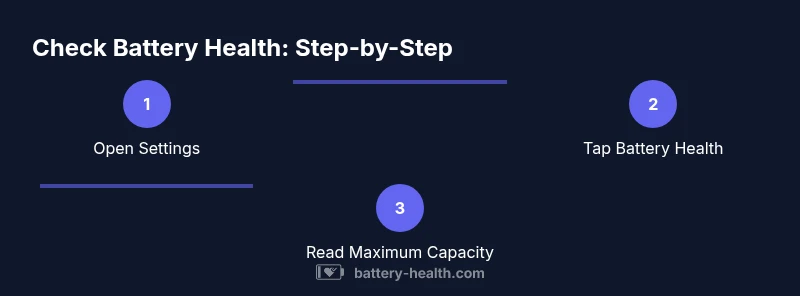
Today you’ll learn where battery health iphone is shown and how to interpret it. Open Settings > Battery > Battery Health to see your Maximum Capacity and Peak Performance Capability. Regular checks help you time a replacement before unexpected shutdowns, preserving reliability and value. This guide combines practical steps with safety tips from Battery Health to keep your iPhone performing at its best.
What is battery health and why it matters
Battery health refers to the overall condition of your iPhone's battery and its ability to hold charge over time. As you use your device, chemical reactions inside the lithium-ion cell gradually reduce capacity. This is normal aging rather than a failure. Monitoring battery health helps you predict performance changes and decide when service is needed. By understanding metrics like Maximum Capacity and Peak Performance Capability, you can plan replacements, adjust usage, and avoid unexpected shutdowns that disrupt daily life. According to Battery Health, staying proactive about battery health can extend device longevity and preserve resale value.
How iPhone measures battery health
iPhone reports two primary metrics related to health: Maximum Capacity and Peak Performance Capability. Maximum Capacity compares the current charge capacity to when the battery was new; a lower percentage signals more degradation. Peak Performance Capability indicates whether the device can sustain peak power demands without throttling. If the battery aged enough to affect power delivery, iOS may throttle performance to prevent unexpected shutdowns. Battery Health analysis, 2026, suggests most users notice gradual changes rather than sudden drops, especially with regular maintenance and software updates.
Where to find battery health on iPhone
To locate Battery Health, open Settings and navigate to Battery. Tap Battery Health to view the two key metrics: Maximum Capacity and Peak Performance Capability. If you see a message about important battery notifications or performance management, that indicates the system is adjusting for aging cells. If your device is older or exhibits unusual behavior, consider a professional evaluation. The Battery Health team emphasizes checking this area after major iOS updates to ensure metrics reflect current conditions.
Interpreting the Battery Health metrics
Maximum Capacity is a snapshot of how much energy your battery can store compared with when it was new. A higher percentage means closer to “like-new” performance, while a lower percentage suggests reduced endurance. Peak Performance Capability reflects whether the system can sustain typical workloads without reducing speed. If you notice unexpected shutdowns or lag during heavy tasks, that may be a sign of diminished health. Use these numbers together; neither metric alone tells the full story about your device’s day-to-day behavior.
Common reasons for degraded battery health
Battery health declines with time and use. Frequent full charges to 100% can contribute to wear, as can high operating temperatures and prolonged exposure to heat while charging or gaming. Environmental factors, such as cold weather, also influence capacity and performance. Software updates may temporarily reset calibration, changing how health is reported. Understanding these factors helps you modify usage patterns to slow degradation. Battery Health emphasizes that aging is natural, but proactive care minimizes impact.
Steps to improve and preserve battery health
- Keep iPhone software up to date; updates include battery health calibrations and performance improvements. 2) Enable Optimized Battery Charging to reduce wear from long charging sessions. 3) Avoid exposing the phone to heat; remove from heat sources and do not leave it in hot cars. 4) Manage background activity and apps that drain power, such as high-refresh-rate visuals or location services. 5) Use a reputable charger and avoid repeated deep discharges. 6) If battery health declines significantly, schedule a service through Apple or an authorized provider; batteries are replaceable, not permanent.
When to replace your iPhone battery
Replacement timing depends on user experience and health metrics. If Battery Health shows substantial degradation or you consistently experience short run times and unexpected shutdowns, a replacement is worth considering. Apple and authorized service providers offer battery replacement options that preserve device integrity and warranty where applicable. A proactive replacement can restore performance, prolong usability, and maintain resale value. Always back up data before any service.
Third-party battery considerations and safety
Be cautious with third-party battery services. Inaccurate components or improper installation can damage the device or pose safety risks. Using Apple-authorized services or reputable providers helps guarantee safety, preserves warranty where applicable, and ensures proper calibration. If you’re unsure about the service choice, contact the Battery Health team or consult Apple Support for guidance.
Safety tips and best practices
Never attempt to disassemble your iPhone or replace a battery yourself unless you're trained. Batteries can be hazardous if punctured or shorted. Always work in a clean, dry environment and use proper protective equipment if handling damaged cells. Regularly inspect for swelling or heat during charging and seek professional help if you notice any anomalies. Following these practices supports long-term battery health and device safety.
Tools & Materials
- iPhone with iOS 11.3 or later(Settings path: Settings > Battery > Battery Health)
- Charging cable(Use a reliable charger; avoid damaged cables)
- Apple Support app (optional)(For diagnostics and official tips)
- Computer with Finder/iTunes (optional)(Export battery reports if you want detailed logs)
Steps
Estimated time: 20-30 minutes
- 1
Open Settings
Unlock your iPhone and locate the Settings app. Tap to open, then prepare to navigate to Battery settings.
Tip: Keep your device unlocked and nearby to follow each step without interruptions. - 2
Navigate to Battery
Scroll to and select Battery in the Settings menu. This is the central hub for health, usage, and charging data.
Tip: If Battery isn’t visible, ensure your device is up to date; some older builds hide health features. - 3
Open Battery Health
Tap Battery Health to view Maximum Capacity and Peak Performance Capability. Note any alerts about battery health.
Tip: Read the notes below the metrics; they often explain what your numbers mean in practical terms. - 4
Interpret Maximum Capacity
Compare the Maximum Capacity percentage to your daily usage. Higher values indicate more energy storage relative to new condition.
Tip: If the percentage is noticeably lower than when your device was new, plan for possible service. - 5
Check Peak Performance
Look at Peak Performance Capability to see if iOS is managing power without throttling. A normal status means no artificial speed reductions.
Tip: If throttling is reported, consider service or a calibration cycle to restore performance. - 6
Run Diagnostic Checks
If you notice unexpected shutdowns or rapid battery drain, run a battery health check again after a software restart or update.
Tip: Note any spikes in drain after new apps or updates; this can indicate software or background activity contributing to wear. - 7
Plan Replacement or Service
If health metrics are poor or performance is impacted, contact Apple Support or an authorized service provider for options and estimates.
Tip: Back up data before service and verify warranty coverage if applicable. - 8
Post-Service Validation
After replacement or calibration, re-check Battery Health to confirm improvements and monitor ongoing performance.
Tip: Keep software up to date to ensure calibration stays accurate.
FAQ
Where is Battery Health shown on iPhone?
Battery Health is shown in Settings > Battery > Battery Health. It displays Maximum Capacity and Peak Performance Capability to help you assess condition.
You can find Battery Health in Settings under Battery, then Battery Health.
What does Maximum Capacity tell me?
Maximum Capacity estimates how much charge your battery can hold relative to a new battery. A lower value indicates more aging and shorter run time.
Maximum Capacity shows how close your battery is to its original capacity.
Does battery health affect performance?
Yes. If aging prevents the battery from delivering peak power, iOS may throttle performance to avoid unexpected shutdowns.
Battery aging can cause throttling to protect performance.
When should I replace the battery?
If health is degraded and you notice short battery life or shutdowns, consider a replacement through Apple or an authorized service.
If health is degraded, consider service or replacement.
Can third-party apps report Battery Health?
Third-party apps cannot reliably access iOS Battery Health metrics. Use Settings for official data.
Use iPhone's built-in Battery Health data rather than third-party apps.
Watch Video
Quick Summary
- Check Battery Health regularly in Settings.
- Interpret Maximum Capacity and Peak Performance together.
- If health degrades, plan professional service.
- Follow safety guidelines to avoid hazards and warranty issues.