Why Battery Not Charging: A Practical Troubleshooting Guide
Discover practical, safety-focused steps to fix a battery that won't charge. From simple cable checks to software tweaks, learn how to diagnose and resolve charging problems quickly.


Most often, the problem is a simple fault: a degraded charger, a loose connection, or a dirty charging port. Start by testing the outlet and trying a known-good charger, then inspect the cable for damage. Clean contact points gently and reseat the plug. If it still won’t charge, check battery health and software settings.
What does it mean when a battery won't charge?
When you ask, <em>why battery not charging</em>, you're usually facing a mix of hardware wear, moisture exposure, or software safeguards rather than a single catastrophic failure. According to Battery Health, most charging failures are caused by simple, correctable issues such as a worn cord, a dirty port, or outdated firmware. Understanding the charging pathway helps you narrow down the culprits: power source, cable, connector cleanliness, battery health, and the device's charging logic. In many cases, resolving the problem is a matter of elimination—checking the most common inputs first, then moving toward the more complex components. The goal is safe restoration of charging without risking battery damage or safety hazards.
As you diagnose, keep the device unplugged when you inspect hardware and avoid forcing connections. If the battery appears swollen, do not attempt to charge the device and seek professional help immediately. This section lays the groundwork for a methodical approach, so you can determine whether you can fix it at home or need expert service.
Quick checks you can do safely
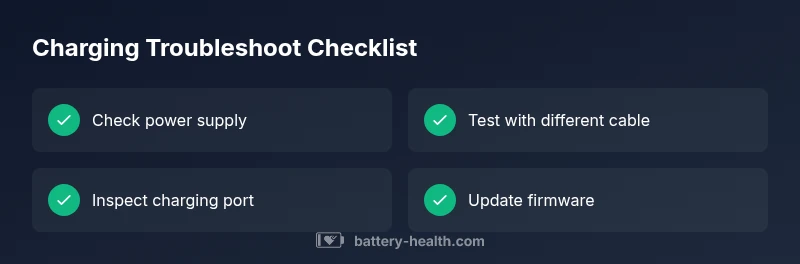
Before opening cases or replacing parts, run through a quick, safe checklist. Verify the power source by plugging into a known-good outlet or power bank. Try a different charger and cable to rule out a faulty accessory. Inspect the charging port for lint, corrosion, or bent pins and clean carefully with a dry, soft brush. Re-seat the connector firmly and observe any subtle indicators like LED activity or device notifications. If the device remains uncharged after these steps, you’ve moved into deeper diagnostics. Document the symptoms (e.g., no charging light, intermittent charging) to help you track patterns and communicate with support if needed. Remember: safety first; disconnect when inspecting and avoid using metal tools near battery terminals.
Inspect the charger and cable for wear
Cables and adapters degrade over time. Coat-check for exposed wires, kinks, or discoloration. A frayed cable can cause intermittent charging or no charging at all. If you own a multimeter and know how to use it, you can test continuity in the cable, but a simple visual check often suffices. Use a charger with the correct power rating for your device to prevent overloading the charging circuit. If the charger or cable shows signs of damage, replace it with an official or certified accessory. Worn components are the most frequent cause of why a battery won’t charge and are typically easy to fix.
Check the charging port and connectors
Dust, lint, or moisture in the charging port can block current flow. Use a flashlight to inspect the port and gently remove debris with a wooden toothpick or a soft brush—do not insert metal objects. For USB-C or other reversible connectors, ensure the connector sits flush and isn’t loose. If the device is hot after trying to charge, stop and let it cool before attempting again; excessive heat can trigger protective features that prevent charging. For some devices, cleaning the port may reset charging logic and restore charging ability.
Battery health and age: signs of decline
Batteries have a finite lifespan. If your device reports reduced capacity, slower charging, or sudden shuts-offs, the battery itself may be nearing the end of its life. Look for swelling, unusual warmth, or leaks—these are signs of a hazardous condition that requires immediate professional intervention. Age-related degradation can make charging unreliable even with a good charger. In many devices, you can check battery health in settings to gauge whether replacement is advisable. If the battery health markedly worsens, replacement often restores reliable charging and performance.
Software and firmware considerations
Charging behavior is increasingly managed by software. Outdated firmware or a misconfigured charging profile can cause charging to pause, slow, or fail. Check for system updates and, if available, install a firmware patch addressing battery management. Some devices offer a calibration feature to re-map the battery’s charge cycles; run it if you notice inaccurate battery readings or rapid drop-offs. If you recently installed a new app or system tweak, consider whether it could influence power management. In many cases, software fixes are quicker and safer than hardware replacements, especially when the hardware shows no obvious damage.
Battery management systems and charging profiles
Modern devices use battery management systems (BMS) to optimize charging curves for longevity and safety. A misconfigured charging profile, a failed BMS sensor, or protective circuitry triggered by temperature can prevent charging. In such cases, a factory reset (where appropriate) or a calibration cycle can help, but approach with caution. If your device keeps hitting protection thresholds (e.g., charging stops at a low percentage and won’t resume), you may need to service the BMS module. This section highlights how the electronics governing charging can be as important as the physical battery itself.
Advanced diagnostic steps you can take
If basic checks fail, consider these advanced steps: verify system logs for power/charging events, test with a battery health app (where available), and check for driver or kernel-level issues on computers or tablets. For cars with 12V or high-voltage packs, a diagnostic scanner may reveal charging system faults, alternator issues, or battery pack anomalies. Document any error codes and symptoms to share with a technician. Always follow safety precautions when probing high-energy systems, and use certified tools. Advanced diagnostics should be performed only if you’re confident in handling electronics.
When to seek professional help and safety warnings
If you observe swelling, strong heat, hissing sounds, or leaking fluids, stop immediately and seek professional service. Do not attempt to disassemble a swollen battery or bypass safety features. If the device is still under warranty, contact the manufacturer for guidance and potential replacement. For complex cases—like non-removable batteries, high-voltage packs in EVs, or medical devices—professional support is essential. The Battery Health team emphasizes safety and recommends consulting a qualified technician when in doubt, as improper handling can cause injury or fire.
Steps
Estimated time: 60-120 minutes
- 1
Confirm power source
Unplug the device and plug the charger into a known-good outlet. If you have another charger, test with it to rule out a faulty power supply. Observe whether any charging indicators respond when you reconnect power.
Tip: Use a surge-protected power strip to minimize outlet issues. - 2
Inspect cables and connectors
Visually inspect the charging cable for wear, bends, or exposed wires. Try a different charger and cable; if the device charges with another setup, replace the old cable. Re-seat the connector until it clicks and verify the device recognizes power.
Tip: Avoid pulling on the cable; unplug by the plug, not the cord. - 3
Clean charging port
Power off the device and use a dry brush or compressed air to remove dust from the port. Do not insert metal implements. Check for any pin misalignment and test charging again.
Tip: Do not use liquids; moisture can damage internal components. - 4
Check software/firmware
Navigate to system updates and install any available firmware. If the device supports battery calibration, run it following the manufacturer’s instructions. Restart after updates and attempt to charge again.
Tip: Back up important data before major updates. - 5
Assess battery health
In device settings or a health app, review battery capacity and cycle count. If health is poor, plan for a replacement. For devices with removable batteries, consider replacing the pack with a certified unit.
Tip: A degraded battery often explains persistent charging issues. - 6
Evaluate safety indicators
If the device becomes unusually hot or emits a odor, stop using it and disconnect power. Swollen or damaged batteries are a hazard and require professional service.
Tip: Never attempt to puncture or crush a swollen battery.
Diagnosis: Device shows no charge or charging stops unexpectedly
Possible Causes
- highPower issue from outlet or charger
- highDamaged or worn charging cable/adapter
- mediumDirty or obstructed charging port
- mediumBattery age or swelling
- mediumSoftware/firmware charging profile fault
- lowFaulty charging circuit or BMS sensor
Fixes
- easyTest outlet with another device; try a different charger and cable
- easyInspect and clean the charging port; reseat connector firmly
- easyReplace damaged cable/adapter with certified accessory
- mediumUpdate firmware/software and run battery calibration if available
- mediumCheck battery health settings or device health app; consider replacement if degraded
- hardIf battery is swollen or overheating, stop using and seek professional service
FAQ
Why won't my device charge when plugged in?
Charging can fail due to a bad power source, a frayed cable, or a dirty/blocked port. Run through basic checks first, then move to software or battery health assessments if needed.
If your device won't charge, start with the power source and cable, then check the port and battery health.
Is it the charger or the device when charging fails?
Begin with the charger and cable because they’re the most common culprits. If replacement fixes the issue, the device may be fine. If not, investigate software or the battery itself.
Chances are it’s the charger or cable. If not, check software and battery health.
Can software updates affect charging?
Yes. Updates can change charging profiles or fix bugs in battery management. Install updates and run any recommended calibration steps if available.
Software updates can fix charging problems by correcting power management issues.
What should I do if the battery is swollen?
A swollen battery is hazardous. Stop using the device, avoid charging, and seek professional service or battery replacement immediately.
If you see swelling, stop using the device and get it serviced right away.
Do wireless chargers work the same as wired charging?
Wireless charging uses a different path and power profile. If wired charging fails, test with a wired charger first to isolate the problem.
Wireless charging can have different issues; test wired charging to pinpoint the cause.
When should I replace my battery?
Replace when capacity is noticeably reduced, charging is inconsistent, or the device shows repeated shutdowns. A professional can verify the health and recommend a replacement.
If battery health is poor or charging is unreliable, replacement is often the right move.
Watch Video
Quick Summary
- Verify power source and accessories first
- Clean ports and reseat connectors
- Update software and calibrate when advised
- Check battery health and age for replacement decisions
- Consult a professional for swollen or high-risk batteries