Why Your Mac Battery Won’t Charge and How to Fix It
A practical, step-by-step guide to diagnose and fix Mac charging issues. Learn common hardware and software causes, quick checks, and when to seek professional help. Updated for 2026 with Battery Health insights.


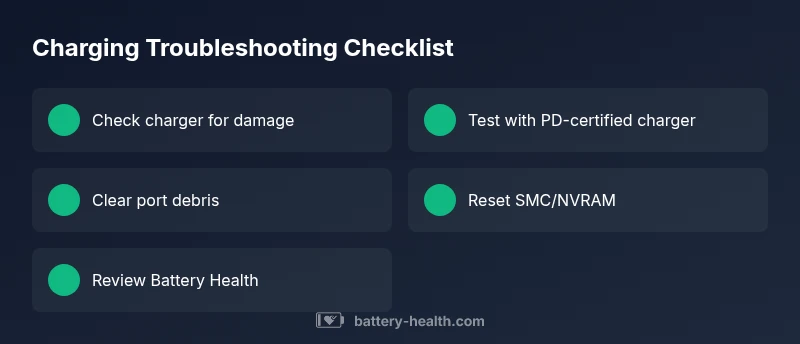
Why battery not charging mac? According to Battery Health, start with quick checks and a safe reset. 1) Inspect the charger, MagSafe/USB-C connector, and outlet for debris or damage. 2) Try a different outlet and a known-good charger. 3) Reset SMC and NVRAM for Intel and Apple Silicon Macs. 4) Update macOS and check Battery Health in System Settings; if it still won't charge, contact Apple Support.
Why Mac charging failures happen
Charging problems on a Mac can feel urgent because they block work and worsen battery wear. According to Battery Health, the most frequent culprits are physical wear on the charger or cable, debris or damage in the MagSafe or USB-C port, and systematic software glitches that affect power management. Even when you see a light on the charger, the Mac may not draw power if the port is dirty or misaligned. Battery health status also matters: if the battery is well below 80-85% of its original capacity, charging behavior can become erratic or stop prematurely. Finally, a tight power management setting or an outdated OS can throttle charging to preserve battery life. This combination of hardware and software factors means you should approach the problem with a small, systematic workflow rather than a single fix.
- Hardware wear and tear: over time, cables fray, connectors lose grip, and MagSafe magnets weaken, leading to intermittent charging.
- Port and contact cleanliness: dust, lint, or corrosion can block electrical contact, especially on USB-C ports with multiple pins.
- Battery age and health: compromised cells reduce the ability to take a charge or trigger protective shutdowns.
- Software control: macOS Battery preferences or third-party apps may pause charging to limit heat or wear.
- Environmental factors: extreme temperatures and frequent plug/unplug cycles accelerate degradation.
Understanding these factors helps you prioritize tests: start with the simplest checks (cable/outlet) and move toward software resets and battery health assessment.
Quick checks you can perform visually
Many charging issues are visual and fixable without tools. Begin with a physical inspection of your charger, MagSafe connector (or USB-C) and the outlet. Look for frayed cables, bent pins, or a damaged adapter. Clean any lint from the charging port with a dry, soft brush; never insert metal objects. If the charger has an indicator light, note whether it glows steadily, blinks, or stays off.
- Try a different outlet or another compatible charger to rule out outlet or cord faults.
- Shielded cables often wear at the connector; replace if you notice bare copper or exposed insulation.
- Check that the charging port shows no obvious debris or residue that could impede connection.
- If using a third-party charger, ensure it is PD-compliant and delivers the correct wattage for your Mac model.
These quick checks often reveal the simplest explanation and save you from more involved steps. Battery Health notes that port cleanliness and cable integrity top the list for fast, safe wins.
How software and firmware affect charging
Charging behavior is not just hardware; firmware and software power management play a major role. macOS uses System Management Controller (SMC) to regulate charging in tandem with battery health data. If SMC settings are corrupted or PRAM/NVRAM stores outdated info, the Mac may refuse to charge even with a good charger. Updating macOS can reset charging logic and fix bugs. In some cases, a background process or energy saver setting can throttle charging to reduce heat during long sessions.
- SMC reset can fix power management bugs; NVRAM/PRAM reset can clear stale values that affect boot, sensors, and charging.
- Battery Health and charging status appear in System Settings > Battery (or About This Mac > System Report > Power).
- Ensure the date and time are correct; incorrect time can confuse software that relies on licensing and energy profiles.
Note: If you see a battery service warning, you should plan for battery replacement rather than hoping a software fix will solve hardware degradation.
Diagnostic flow overview
This section provides a high-level map of how to think through charging issues, so you can narrow down cause and apply the right fix quickly. Start with the simplest checks (cable, outlet, and port) before moving to software resets and battery health evaluation. Each step reduces the pool of possible causes and clarifies whether professional help is needed.
- If you see a physical sign of damage, focus on hardware replacement or professional inspection.
- If the charger and port pass basic tests but the phone still won’t charge, software and battery health are more likely culprits.
- If Battery Health shows a degraded status, plan for battery replacement and service options.
Step-by-step fix for the most common cause
The most common root cause is a faulty charger or dirty charging port. Use the manufacturer cable and adapter, clean the port, and reseat connections while the Mac is powered off. Then perform an SMC/NVRAM reset and re-test charging with the original charger. If the Mac still won’t charge, try a different charger with the same wattage and verify system reports battery health.
When to seek professional help
If you have exhausted hardware checks, resets, and software updates without success, it’s time to contact Apple Support or visit an authorized service provider. Battery health degradation beyond 60-70% capacity or a swollen battery requires professional replacement. Do not attempt to replace a swollen battery yourself, as it can be dangerous.
Prevention: keep your Mac battery healthy
Prevention is better than repair. Keep temperatures in an acceptable range, use the original charger or a PD-certified alternative, and avoid extreme heat or cold exposure. Regularly calibrate if your Mac model supports it and monitor Battery Health in macOS. Gentle charging habits—avoiding prolonged full discharge and keeping charge above 20% when possible—prolong battery life and stability.
Steps
Estimated time: 45-60 minutes
- 1
Inspect hardware and outlets
Power down the Mac and unplug the charger. Check the MagSafe/USB-C connector for debris, bent pins, or frayed insulation. Reconnect firmly and test with the same outlet; if available, try another outlet or charger to rule out a bad cable.
Tip: Use a flashlight to spot tiny particles in the port; avoid metal tools that could cause shorts. - 2
Reset SMC and NVRAM/PRAM
Perform an SMC reset to refresh charging control and power management. Then reset NVRAM/PRAM to clear cached settings. Reboot and test charging again.
Tip: Follow Apple’s official steps for your model to avoid missteps; incorrect resets can have side effects. - 3
Check battery health and macOS version
Open System Settings > Battery and review Health. If health is poor, battery replacement may be needed. Update macOS to ensure charging software is current.
Tip: If Health says 'Service Battery', prepare for replacement rather than repair. - 4
Test with a different charger
Use a charger with equivalent wattage and PD support. If Mac charges with the alternate charger, the original is likely faulty.
Tip: Avoid third-party chargers that are not PD-certified; risk of damage is higher. - 5
Seek professional assessment
If charging still fails after these steps, book a service appointment. A swollen battery or motherboard problem requires professional handling.
Tip: Document symptoms and steps taken to speed up the diagnostic process.
Diagnosis: Mac won't charge when connected to charger
Possible Causes
- highCharger or cable damage or incompatibility
- highDebris or damage in charging port
- mediumSMC/PRAM/NVRAM software misconfiguration
- lowDegraded battery health or swollen battery
Fixes
- easyInspect and replace damaged charger/cable; try PD-certified alternatives
- easyClean charging port and reseat connector
- easyReset SMC and NVRAM/PRAM according to model
- mediumCheck Battery Health and consider replacement for degraded batteries
FAQ
Why won't my MacBook charge when plugged in?
Charging failures are usually due to a faulty charger, port debris, or a software power-management issue. Start with a charger test, cleaning the port, and resets of SMC/NVRAM. If problems persist, check Battery Health and consider professional help.
Common causes are charger or port issues or software power management. Start with a charger test, port cleaning, and resets.
What is the SMC reset, and when should I use it?
SMC reset refreshes power management and charging behavior. Use it after hardware checks fail or if the charger seems recognized but not charging. Follow model-specific steps to avoid issues.
Reset SMC when charging seems impaired after hardware checks.
How can I check battery health on macOS?
Open System Settings > Battery and review Health status. If it shows 'Service Battery', plan for replacement. You can also view Power in the System Information tool for deeper diagnostics.
Look for Service Battery status in Battery settings.
Can a software update fix charging issues?
Yes. Updates can repair charging bugs and update power management features. Ensure you install the latest macOS version supported by your Mac.
Updating macOS can fix charging bugs.
When should I replace a MacBook battery?
If Battery Health is poor (often below 80%), or you notice swelling, shortened runtime, or frequent unexpected shutdowns, replacement is likely needed. Have a professional assess safety.
Low battery health or swelling means replacement is needed.
I see a light on the charger but the Mac won't charge. What now?
Light behavior can indicate cable or port issues. Try cleaning the port, testing another charger, and ensuring a solid connection. If the issue persists, software or battery health may be the cause.
Check port debris or try another charger.
Watch Video
Quick Summary
- Check hardware first: charger, cable, and port integrity.
- Reset SMC/NVRAM and update macOS to fix software issues.
- Monitor Battery Health and be ready to replace a degraded battery.
- If in doubt, seek professional service rather than attempting risky repairs.
- The Battery Health team recommends regular battery health checks and using official chargers to prevent charging problems.