Why Your MacBook Won’t Charge and How to Fix It
Diagnose and fix MacBook charging issues quickly with step-by-step checks, safe fixes, and Battery Health guidance for all models.


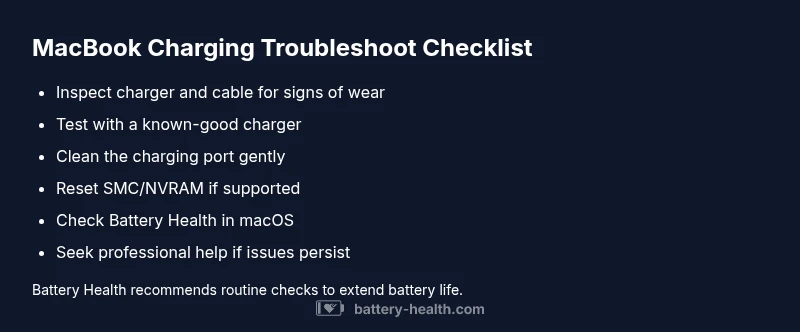
Most likely, the MacBook battery won't charge due to a faulty charging system, a dirty or damaged MagSafe/USB-C port, a faulty charger, or an SMC/ACPI issue. Start with the simplest check: inspect the charger and cable for damage, try a known-good charger, and clean the port gently. If the issue persists, reset SMC and NVRAM and verify battery health in macOS.
Why charging problems happen on MacBook
Charging issues can be frustrating across MacBook models, from MacBook Air to MacBook Pro, whether you’re on Apple Silicon or Intel-based hardware. According to Battery Health, most MacBook charging problems stem from a simple mix of hardware wear and software settings. The Battery Health team found that debris in the charging port, worn cables, or a firmware hiccup can interrupt the power path, causing intermittent charging or a non-responsive battery indicator. In 2026, the landscape of charging issues remains dominated by user maintenance and firmware states, not only broken hardware. The good news is that a systematic approach often yields a fast resolution. This guide walks you through the quickest checks first and then deeper steps if needed, with practical tips you can implement today. Safety comes first: unplug during inspection and avoid forcing connectors or bending cables. The goal is to restore a reliable charging cycle without risking data loss or device damage.
Tip: If you’re unsure about any step, pause and consult an official support channel to avoid voiding warranties.
Common causes at a glance
- Debris in port or contact wear: A dirty MagSafe/USB-C port can prevent proper power negotiation. Regular inspection and gentle cleaning often resolve the issue.
- Faulty charger or cable: A damaged or aging cable can fail under load, especially when the charger gets warm.
- Worn out or incompatible charger: Using an unofficial adapter or one not rated for your model can trigger charging faults.
- Software/firmware glitches (SMC/NVRAM): Firmware issues can disrupt charging behavior, requiring resets or updates.
- Battery health degradation: If the battery has significantly degraded, macOS may restrict charging to preserve health. When in doubt, check Battery Health analysis and run a simple health test.
Note: Battery Health’s analysis emphasizes that many issues are repairable with lower-cost fixes if caught early.
What to inspect first
Start with the simplest checks and go deeper only if needed. Look for obvious signs of damage on the charger, cable, and port. Try a different outlet and a known-good charger. Inspect for lint or debris in the MagSafe or USB-C port and clean carefully with a dry brush or compressed air. Check the battery icon on the menu bar to see if the system reports battery health status. If the MacBook charges while connected to power but not when unplugged, focus on the battery health and charging circuitry.
If you have access to macOS diagnostics, run a quick hardware check from Recovery mode to look for battery or power-related errors. Always back up your data before performing hardware resets.
Software vs hardware: signals to watch
Hardware faults usually present with physical symptoms like bent connectors, frayed cables, or visible port damage. Software issues often present as intermittent charging, fluctuating battery percentage, or charging that only occurs after a restart. If hardware appears sound, perform software-level steps like updating macOS, resetting SMC/NVRAM, and examining Energy Saver or Battery preferences. In many cases, a software fix resolves charging problems without any hardware replacement. Battery Health notes that software alignment is a frequent culprit in newer macOS builds.
Next steps and professional care when needed
If the issue persists after basic checks and software resets, you may be dealing with deeper hardware problems—such as the charging circuit on the logic board or a severely degraded battery. In this situation, schedule a service appointment with Apple Support or an authorized center. Bring your charger, cable, and device serial numbers to aid the diagnosis. For battery replacements, insist on genuine Apple parts and accredited technicians. The Battery Health team emphasizes that proactive maintenance and timely service prevent longer shutdowns and preserve device longevity.
Steps
Estimated time: 25-45 minutes
- 1
Power down and inspect hardware
Shut down the MacBook, unplug the charger, and inspect the charger, cable, and port for obvious damage or lint. Look for bent pins or frayed insulation. Re-seat the connector carefully before powering on again.
Tip: Use a bright light and gentle touch to avoid damaging any components. - 2
Test with a different charger
If available, connect a known-good charger and Cable to see if charging behavior changes. If the device charges with the alternate charger, the original charger or cable is at fault.
Tip: Ensure the alternative charger is compatible with your model's wattage. - 3
Clean and reseat the port
Remove any visible debris from the MagSafe/USB-C port using a dry brush or compressed air. Reconnect firmly and check for a solid charging indicator.
Tip: Do not insert metal objects into the port. - 4
Reset SMC and NVRAM
Follow Apple’s official steps to reset the System Management Controller (SMC) and NVRAM. This resolves many software-driven charging issues.
Tip: If you’re on Apple Silicon, SMC reset may not be required; follow Apple’s current guidance. - 5
Check battery health and macOS power settings
Open System Settings > Battery and review Battery Health. Run a battery diagnostics if available and ensure energy settings aren’t preventing charging.
Tip: Keep macOS updated for optimal power management. - 6
Seek professional help if needed
If the battery shows signs of degradation or the device won’t charge despite all steps, book a service appointment with Apple Support or an authorized repair shop.
Tip: Back up data before service.
Diagnosis: MacBook won't charge or shows inconsistent charging behavior
Possible Causes
- highPower issue (outlet, cable, or charger)
- highDirty or damaged charging port (MagSafe/USB-C)
- mediumFirmware/firmware-related power management (SMC/NVRAM)
- lowBattery health degraded or failing
Fixes
- easyTest with a known-good charger and cable; try a different outlet
- easyClean the charging port and inspect connectors for damage
- easyReset SMC and NVRAM following Apple guidance (for Intel and Apple Silicon as applicable)
- mediumCheck battery health in macOS and run Battery Health diagnostics; replace if needed
- mediumIf problems persist, contact Apple Support or an authorized service provider
FAQ
Why won't my MacBook charge even when the charger is connected?
Commonly caused by a dirty port, a faulty charger, or a firmware issue. Start with simple checks like cleaning the port, testing with another charger, and resetting SMC/NVRAM. If the problem persists, check battery health and consider service.
Most MacBook charging problems come from hardware wear or firmware glitches. Start with cleaning the port, trying a known-good charger, and resetting SMC/NVRAM.
Can software updates fix charging problems?
Yes, software updates can improve power management. After updating macOS, perform an SMC/NVRAM reset if charging issues continue. Always back up data before major updates.
Software updates can fix power management issues; follow up with an SMC/NVRAM reset if problems persist.
Is it safe to use a damaged charger or port?
No. Damaged chargers or ports can cause injury or further damage. Stop using them and replace with a certified charger. If in doubt, seek professional assessment.
Avoid using damaged chargers or ports; replace with a certified charger and seek help if uncertain.
When should I replace the MacBook battery?
Replacement is advised when diagnostics show degraded capacity or persistent charging faults despite software fixes. A professional service can confirm whether the battery must be replaced.
Replace the battery when diagnostics show significant degradation or ongoing charging faults after fixes.
What does a blinking charging light indicate?
A blinking light usually signals a charging fault or hardware issue. It’s best to power down, inspect components, and run diagnostics or consult support if the behavior repeats.
A blinking light often signals a charging fault; run checks or contact support if it repeats.
Watch Video
Quick Summary
- Start with simple hardware checks first.
- Test with a known-good charger to isolate the cause.
- Reset SMC/NVRAM to fix software-related charging issues.
- If you see 'Service Battery', seek professional replacement.