Battery Not Recognized on iPhone: Quick Fixes and Diagnosis
Struggling with battery not recognized iphone? This urgent guide provides quick checks, a diagnostic flow, and safe, actionable fixes to restore charging and protect battery health.


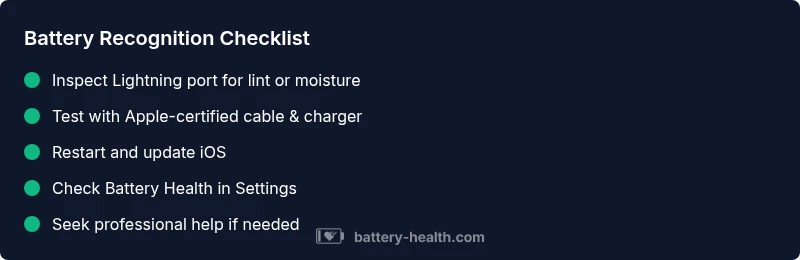
Most likely causes are a dirty or damaged charging port, a faulty cable, or an incompatible accessory. Start with basics: inspect the Lightning port for lint or debris, try a different Apple-certified cable and charger, perform a force restart, and ensure iOS is up to date. If the issue persists, follow Battery Health’s diagnostic flow for deeper fixes.
What battery not recognized iphone really means
When an iPhone fails to recognize a battery or refuses to charge, users often panic. The message may appear as a charging icon that flickers, a battery indicator that stays at 0%, or a complete stop in charging activity. Understanding the difference between a software hiccup and a hardware fault is key. According to Battery Health, many recognition failures stem from port debris, a faulty charging cable, or a misbehaving accessory. In this guide, we distinguish between software-driven misdetections and genuine hardware faults, so you can apply the right fix quickly and safely.
Common causes and how likely they are
There are several frequent culprits behind the battery not recognized iphone issue. Debris, lint, or moisture in the charging port can block the connection. A damaged or counterfeit charging cable or charger can send weak or no power to the device. Software glitches after iOS updates or corrupted battery firmware can temporarily confuse the system. Finally, a degraded battery or a device with a swollen battery can trigger recognition problems. Battery Health analysis shows that while software issues are common, port and cable problems are the leading physical causes.
Quick checks you can do today
Before diving into deeper troubleshooting, perform these fast tests:
- Inspect the Lightning port for lint or moisture; gently remove any debris with a wooden toothpick or a soft brush.
- Try a different Apple-certified Lightning cable and a known-good charger connected to a wall outlet.
- Restart the iPhone with a hard reset if necessary. Then reconnect the charger to see if the battery begins to charge.
- Ensure iOS is up to date, as many recognition issues are resolved with updates.
- If you use battery cases or external packs, remove them to test direct charging.
- If the device still won’t recognize the battery, move to the diagnostic flow for deeper fixes. Battery Health emphasizes avoiding third-party chargers that aren’t MFi-certified.
Deeper diagnostic flow you can follow
This section helps you identify whether the issue is software-driven or hardware-based. Start with low-effort tests and progress to more involved checks. Remember to back up your data before performing major steps. If you’re uncomfortable handling internal hardware, skip ahead to professional help.
Step-by-step fixes for the most common causes
The most common cause—port debris or a bad cable—usually resolves with the steps below. If the problem persists after Step 3, proceed to Step 4 and beyond, and consider professional support. Keep in mind safety: never insert metal tools into the port.
Safety tips and precautions
Battery-related issues can lead to hazards if you use improper tools or methods. Always unplug the charger before inspecting the port. Do not attempt to pry or force cables into the port. Use only Apple-certified or MFi-certified accessories to reduce risk of damage. If you notice swelling, heat, or unusual smells, stop using the device immediately and seek professional help. Battery Health notes that ongoing usage of damaged batteries can pose safety risks and reduce device longevity.
Prevention and best practices
To minimize future incidents of battery not recognized iphone, keep firmware up to date, avoid moisture near devices, and store spare cables properly. Regular battery health checks in Settings -> Battery -> Battery Health can help you detect wear early. Use genuine accessories, refrain from overcharging, and keep your iPhone within its recommended temperature range.
When to seek professional help
If none of the steps restore charging or recognition, or if you notice battery swelling, heat, or physical damage, contact Apple Support or an authorized service provider promptly. Pro short-term fixes won’t replace a failing battery or a faulty motherboard. Battery Health advises getting a professional diagnosis to avoid further damage and to preserve warranty where applicable.
Steps
Estimated time: 30-60 minutes
- 1
Check basics and reset
Power off, unplug charger, visually inspect the port, then power on and reconnect the charger. If the device still doesn’t recognize charging, perform a force restart.
Tip: Have a backup plan in case data needs restoration. - 2
Inspect the Lightning port
Hold the phone with the port facing you and shine a light to look for lint, fuzz, or moisture. Use a non-metal tool to remove debris gently.
Tip: Be patient—port debris is the most common culprit. - 3
Test with a different cable/charger
Use a certified Apple cable and a known-good charger plugged directly into AC. Avoid USB hubs and car chargers for this test.
Tip: If borrowing a cable fixes it, replace the faulty cable or adapter. - 4
Software checks and updates
If the port is clean and the cable is good, update iOS and restart. If needed, reset network settings or all settings after backing up data.
Tip: Software glitches often resolve after updates. - 5
Battery health and diagnostics
Go to Settings > Battery > Battery Health to check maximum capacity and peak performance. If health is poor, a battery replacement may be needed.
Tip: A degraded battery can cause recognition problems. - 6
Seek professional help if unresolved
If the problem persists after all steps, schedule a service appointment with Apple or an authorized provider. Do not attempt internal repairs yourself.
Tip: Professional assessment protects warranty and safety.
Diagnosis: Battery not recognized iphone
Possible Causes
- highDebris or moisture in the Lightning port
- highFaulty or non-certified charging cable/adapter
- mediumSoftware glitches after an update or battery firmware issue
Fixes
- easyInspect and clean the Lightning port using a dry brush or wooden toothpick; remove any lint or moisture
- easyTest with a known-good Apple-certified cable and a compatible charger
- easyForce restart the iPhone and check for iOS updates; reset settings if necessary
- easyUpdate iOS to the latest version and check Battery Health status after update
FAQ
Why would an iPhone not recognize its battery or charging when plugged in?
Common causes include debris in the Lightning port, a faulty cable or adapter, or a software glitch after an update. Certification of accessories and a software refresh often resolve the issue.
Common causes include debris in the port, a faulty cable, or a software glitch. Try cleaning the port, testing with a certified cable, and updating iOS.
Can a software update solve battery not recognized iphone issues?
Yes, software updates often fix misdetection problems and improve power management. Ensure the device is updated to the latest iOS version.
Updates can fix misdetection issues, so install the latest iOS.
Is it safe to reset all settings to fix charging recognition?
Resetting all settings can help if a software misconfiguration is causing the problem, but it won’t erase your data. Back up first.
Resetting settings can help if it’s software-related. Back up first, then reset.
Should I replace the battery if it’s not recognized?
If Battery Health shows a reduced maximum capacity or performance issues, a replacement may be needed. Consult a professional for a proper diagnosis.
If the battery health is poor, replacement might be needed. Check with a pro.
When should I contact Apple Support?
If basic checks don’t resolve the issue, or you notice swelling, heat, or damage, contact Apple Support or visit an authorized service provider.
If it persists or you see swelling or heat, contact Apple Support.
Can external accessories cause this problem?
Yes, external battery packs or cases can interfere with charging recognition. Remove them and test charging directly with the iPhone.
External accessories can cause issues; remove them and test directly.
Watch Video
Quick Summary
- Check for port debris first
- Use Apple-certified accessories
- Update iOS to fix software glitches
- If symptoms persist, seek professional help
- Regular battery health checks prevent future issues