Battery Is Not Charging: Urgent Troubleshooting Guide
Urgent, step-by-step troubleshooting for battery is not charging. Learn fast checks, safe fixes, and when to replace, with brand-backed guidance from Battery Health.


Most often, a battery isn’t charging due to the charger, cable, or port, not the battery itself. Quick fix: inspect the charger and cable for damage, try another outlet or charger, and clean the charging port carefully. If it still won’t charge, reset the device or test with a known-good charger to confirm the issue.
Why the battery is not charging: urgent reality check
If you’re dealing with a device that won’t power up even when plugged in, you’re likely facing a charging path problem rather than a failed cell. According to Battery Health, many charging issues start at the power path—the charger, cable, or port—before the battery itself shows signs of fatigue. In this section we outline the high-priority culprits and how to verify them quickly. Look for obvious issues first: a frayed cable, a loose connector, or a nonfunctional outlet. If you skip these basics, you’ll chase symptoms rather than the root cause. The phrase battery is not charging is your signal to start with the simplest checks. Keep your device powered down when inspecting connectors to prevent short circuits and data loss. The goal here is to rule out the simplest causes before moving to more complex diagnostics.
Start with the simplest checks: power path basics
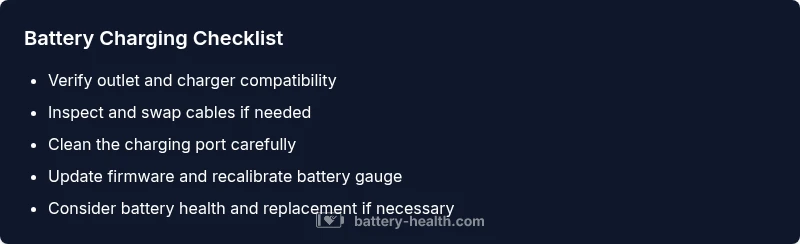
When the device is plugged in but refuses to charge, start with the power path. Check that the outlet is live (use another device to verify), confirm the charger is the correct type for the device, and inspect the cable for any cuts or kinks. Look for loose connections at the charging port and at adapters. If a power source or cable fails a quick test, you’ve likely found the culprit. If the issue persists, you’ll need to test with a known-good charger to determine whether the problem lies in the original charger or the device itself. Remember, simple tests first save time and money.
Test the charging hardware: charger, cable, and outlet
The next step is to isolate hardware issues. Plug the charger directly into the device (no extension cords) and try a different outlet. If you have another compatible charger, test with that as well. Check both ends of the cable for bent pins or loose fittings. If the device still shows battery is not charging after swapping cables and outlets, you’re likely dealing with either a faulty charger or a port problem. Do not force connections; damaged connectors can create safety risks.
Clean and inspect the charging port safely
A dirty or corroded port can prevent charging even with a healthy charger. Power off the device before you proceed. Use a dry, soft-bristled brush or compressed air to remove lint, dust, and debris from the port. Do not insert metal objects; they can short the pins. After cleaning, reconnect a known-good charger and test again. If charging begins, you’ve resolved the blockage; if not, the port may be damaged and require professional service.
Software and firmware: recalibration and updates
Software issues can misreport charging status or interrupt charging cycles. Check for pending OS or firmware updates and install them. Some devices offer a battery health or calibration option in the settings; follow the manufacturer’s recommended procedure to recalibrate the battery gauge. After any software adjustment, reboot the device and attempt to charge again. A software fault can mimic hardware failure, so don’t overlook this step.
When battery age matters: health indicators and replacement timelines
Natural aging reduces a battery’s ability to hold a charge. If your device is several years old, reduced capacity can appear as not charging fully or charging only while connected to power. Examine battery health indicators provided by the device or third-party diagnostics. If the battery shows significant wear, replacement may be more cost-effective than stubborn fixes. Always compare replacement cost with device value and warranty status before proceeding.
Diagnostic flow: how symptoms map to causes
To organize the investigation, map symptoms to probable causes. If charging fails at the wall, the issue points to the power path (outlet, charger, cable, port) or a software fault. If charging starts but drops quickly, battery health or calibration may be at fault. If charging stops after a short time, heat, power management software, or a failing battery could be involved. This structured approach helps you avoid unnecessary replacements and tests.
Step-by-step fixes for common scenarios
- Confirm power source and cable integrity. 2) Replace with a known-good charger. 3) Clean and re-seat the charging port. 4) Update firmware/OS and recalibrate battery gauge. 5) Run built-in diagnostics if available. 6) If the device still won’t charge, test with a replacement battery if feasible. 7) Check for warranty coverage and seek professional service if needed. 8) Document symptoms and timings for the technician.
Prevention and safety: maintenance to avoid future issues
Regularly inspect charging accessories for wear, avoid tangent adapters, and keep charging ports clean and dry. Use manufacturer-approved chargers and avoid moisture exposure. If you notice swelling, heat, or unusual smells, stop using the device and seek professional help immediately. Proper storage and charging habits extend battery life and reduce the likelihood of future charging problems.
Steps
Estimated time: 20-40 minutes
- 1
Verify power source
Ensure the outlet is live by testing another device. If the outlet fails, fix the power supply before continuing.
Tip: Try multiple outlets in different rooms to rule out a single faulty outlet. - 2
Swap in a known-good charger
Use a charger that matches the device’s specification. If charging begins, the issue was the charger.
Tip: Avoid using third-party chargers with ambiguous specs. - 3
Inspect and clean the port
Power off the device and remove debris from the charging port with a dry brush or compressed air.
Tip: Do not insert metal tools into the port. - 4
Check for physical damage
Look for bent pins or loose connectors on the port or cable; replace damaged parts.
Tip: Handle gently to avoid further damage. - 5
Reset/calibrate the battery gauge
Restart the device and perform any calibration steps recommended by the manufacturer.
Tip: Back up data before resets. - 6
Update software/firmware
Apply the latest updates; some devices require recalibration after updates.
Tip: Ensure you have a stable internet connection during updates. - 7
Test battery health diagnostics
Run built-in diagnostics or third-party tools to assess battery health and charge cycles.
Tip: Record health readings for future reference. - 8
Decide on replacement or service
If diagnostics show poor health, plan for replacement or professional service, especially under warranty.
Tip: Compare replacement cost with device value.
Diagnosis: Battery is not charging
Possible Causes
- highPower supply issue (dead outlet, faulty extension, blown fuse)
- highDefective charger or cable
- mediumDirty or obstructed charging port
- lowSoftware glitch or firmware issue
- lowBattery health degradation or age
Fixes
- easyTest outlet with another device and try a different charger/cable
- easyClean charging port with a dry brush or compressed air; avoid moisture
- easyInspect for visible damage; replace damaged charger/cable
- easyRestart device and install firmware/OS updates; recalibrate battery gauge
- mediumIf unresolved, consult professional service for battery health assessment
FAQ
Why isn’t my battery charging even when plugged in?
Common causes include a faulty charger, damaged cable, dirty charging port, software glitches, or degraded battery health. Start with power sources and cables, then check the port and device software.
Common causes are charger or port issues, or battery health. Start with power sources and cables, then check the port and software.
Why does charging happen slowly or stop after a while?
Slow or intermittent charging can be due to a weak charger, high power consumption apps, battery age, or a faulty charging port. Check accessories first and update firmware.
Slow charging is usually a weak charger, heavy battery use, or port issues. Check accessories and update software.
Can a software update fix charging problems?
Yes, updates can resolve charging recognition, battery calibration, and power management issues. Install any pending updates and perform a recalibration if the device offers it.
Yes, updates can fix charge recognition and calibration issues. Install updates and recalibrate.
Should I replace the battery if it won’t charge?
Replacement is common when diagnostics show degraded health and replacement costs are reasonable for the device. Consider warranty terms and overall device value.
If diagnostics show poor health and replacement is cost-effective, replace the battery, especially under warranty.
What if the charging port is physically damaged?
A damaged port often requires professional service or port replacement. Do not attempt to repair with DIY fixes that involve force or tools.
A damaged port usually needs professional service; avoid DIY fixes that could cause further damage.
When should I seek professional help?
If basic checks fail to identify the cause, if you see battery swelling, or if you are unsure about safety, consult a qualified technician or authorized service.
If basic checks don’t fix it or you see swelling, seek professional service.
Watch Video
Quick Summary
- Inspect power path components first
- Clean and reseat the charging port safely
- Rule out software glitches before hardware changes
- Assess battery health; replacement may be cheaper than repeated fixes
- Seek professional help when in doubt