Android Battery Usage: Optimize Power Drain
Understand how Android battery usage works, identify top drains, and implement proven strategies to extend runtime, improve efficiency, and protect long-term battery health across devices.


Android battery usage varies with screen time, apps, and network activity. According to Battery Health, most Android devices drain faster when the display is bright, background syncing is aggressive, and apps keep waking the device. Understanding these factors helps you optimize power, extend runtime, and protect battery health across devices.
How Android Battery Usage Works
Android devices rely on lithium-ion cells, and power is drawn by the CPU, radios (cellular, Wi‑Fi, Bluetooth), sensors, and the display. The OS schedules tasks to balance responsiveness with efficiency, but real-world battery usage depends on your daily habits. In general, longer screen-on time, heavy web activity, and frequent syncing shape the energy budget. As Battery Health notes, the combination of bright displays, frequent wakeups, and persistent network activity accounts for much of the variance in battery usage android across devices. Understanding these drivers lays the foundation for practical optimizations that you can apply regardless of device brand or model.
Common Drains: Screen, Apps, and Connectivity
The largest single source of drain is usually the screen. Higher brightness, higher refresh rates, and longer screen-on time dramatically increase energy use. Behind the scenes, many apps wake the device frequently to fetch data, push notifications, or sync in the background. Radios—cellular, Wi‑Fi, and Bluetooth—consume power when active and when searching for networks. Location services and sensors (GPS, motion, camera) add to the burden if permissions are granted broadly and apps run continuous checks. Finally, idle time isn’t truly idle: even in standby, some background tasks persist. Understanding these switches helps you target your optimization efforts where they matter most.
Strategies to Reduce Android Battery Usage
To begin optimizing battery usage android, prioritize changes with the biggest potential impact:
- Enable Adaptive Battery and Battery Saver modes. These features tailor power use to your typical patterns and limit background activity for rarely used apps.
- Reduce screen brightness and limit the use of high-refresh-rate modes where possible. Use dark mode on OLED screens to save energy when applicable.
- Restrict background data and auto-sync for apps that don’t need constant updates; disable unnecessary location services.
- Review permissions for apps that frequently wake the device and restrict those that aren’t essential.
- Update apps and OS regularly. Some updates optimize power management and fix drains caused by poorly behaving software.
Implementing these steps often yields noticeable gains in runtime without sacrificing essential functionality.
Understanding Doze, App Standby, and Background Activity
Doze and App Standby are Android power-management features that put apps into a deeper sleep state when the device is idle. Doze slows maintenance jobs, while App Standby restricts background activity for rarely used apps. The goal is to minimize wakeups and background syncing when the device isn’t actively in use. By understanding how these features work, you can tune individual apps and permissions to maximize efficiency. For power users, enabling Battery Saver during long periods away from a charger reinforces these protections and compounds the effect.
Charging Habits for Longevity and Performance
Charging behavior affects long-term battery health as well as immediate performance. Avoid letting your battery stay at very high or very low states for extended periods. Whenever possible, keep charging between roughly 20% and 80%, and avoid frequent, extreme cycles. Use properly rated chargers and cables; keep devices away from heat when charging, as elevated temperatures accelerate chemical aging. If your device supports adaptive charging or timed charging, enable those features to optimize charge rate and reduce stress on the cells. Balanced charging and temperature control contribute to better performance and longevity over time.
Debunking Myths About Android Battery Life
Common myths can derail your optimization efforts. For example, while some third-party task killers promise dramatic boosts, most devices perform best with built-in OS power management and selective app permissions. Another myth is that closing apps always saves battery; in reality, many apps reopen quickly and can consume more power when relaunched. Real gains come from adjusting display settings, limiting background activity where appropriate, and relying on official power-saving features.
Android battery usage patterns by activity
| Metric | Android Variation | Typical Range | Notes |
|---|---|---|---|
| Screen-on time | All devices | 3-6 hours | Major driver of drain |
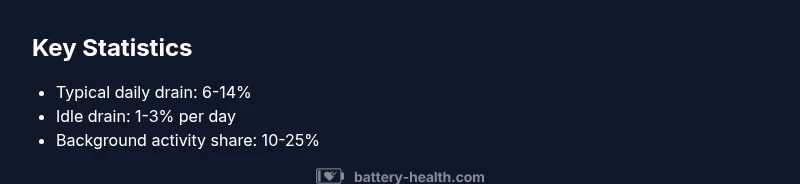
| Idle/standby drain | All devices | 1-3% per day | Small baseline consumption |
| Background activity share | Modern apps | 10-25% of daily drain | Influenced by sync and notifications |
| Display brightness impact | All devices | 5-15% energy change per 25% brightness increase | OLED vs LCD differences exist |
FAQ
What causes faster battery drain on Android?
Battery drain on Android is typically driven by screen brightness, background activity, and network usage. Frequent wakeups, location services, and heavy syncing amplify the effect. Identifying the top culprits helps you target improvements efficiently.
Faster drain usually comes from a bright screen and apps running in the background; find which apps wake the device and adjust settings.
How can I reduce battery usage on Android?
Start with built-in power-saving modes, limit background activity, and adjust location permissions. Lower screen brightness and enable adaptive brightness when appropriate. Regularly review which apps access data in the background.
Turn on power-saving features, curb background activity, and lower brightness to stretch the day.
Does updating Android affect battery life?
Android updates can improve power efficiency through code optimizations, but some updates may temporarily increase drain as new features initialize. Always review changelogs and monitor battery performance after updates.
Updates can help power efficiency, but watch for temporary changes in drain after updates.
Is it safe to use third-party battery optimization apps?
Many third-party optimizers offer little real benefit and can misbehave, causing more drain or privacy concerns. Rely on built-in Android power-management tools and trusted recommendations.
Be cautious with third-party optimizers; rely on built-in tools instead.
How does charging behavior affect battery health?
Smart charging habits can extend lifespan. Avoid constant 0-100% charging, keep temperatures moderate during charging, and use features like optimized charging when available.
Charge smarter and keep devices cool to protect battery health.
Do OLED screens really save battery life on Android?
OLED panels can save energy when portions of the screen are black or dim, but results depend on content and brightness. Overall savings vary by app usage and screen type.
OLED can save energy when showing dark content, but results vary.
Can 5G connectivity impact battery life significantly?
Active 5G use, poor signal strength, and frequent handovers can increase drain. If battery life is critical, temporarily switching to LTE where full coverage exists can help.
Yes, 5G can raise drain in weak signal areas; consider switching to LTE when available.
“Understanding how Android power use shifts with routine is the first step toward meaningful improvements. The Battery Health Team recommends data-driven adjustments over gimmicks.”
Quick Summary
- Identify top drains first: screen and connectivity.
- Use built-in power-saving features to cap background activity.
- Tighten app permissions and background behavior.
- Adjust display and brightness to balance usability and energy use.
- Adopt smart charging to preserve long-term health.