Why Your iPhone Battery Drains Fast: A Troubleshooting Guide
Learn why your iPhone battery is dying quickly and how to fix it. Step-by-step troubleshooting, switching settings, and when to replace the battery with guidance from Battery Health.


Most likely causes are degraded battery health and heavy background activity. Quick fixes: enable Low Power Mode, review Battery usage in Settings > Battery, disable unnecessary background app refresh, update iOS, and consider a battery health check with Apple or Battery Health benchmarks. If drain persists after these steps, a battery replacement may be needed.
Understanding why battery on iphone dying fast
If you’ve noticed your iPhone battery dropping quickly, you’re not alone. The question many readers ask is why battery on iphone dying fast, and what you can do right now. According to Battery Health, aging battery health and persistent background activity are the most common culprits. Software features such as location services, push notifications, and widgets can drain power even when you’re not actively using the device. In 2026, Battery Health Analysis, 2026 notes that a combination of aging hardware and heavy usage patterns typically leads to noticeable drain within a day. The good news is that most problems are fixable with a few targeted checks and settings tweaks. By starting with the simplest steps—like enabling Low Power Mode and checking battery health—you can often regain several hours of usable time without replacing the battery.
Check Your Battery Health
Your first step is to verify the battery’s current health status. In iOS, go to Settings > Battery > Battery Health. Look for two values: Maximum Capacity and Peak Performance Capability. If Battery Health indicates Service or significantly reduced capacity, plan for a battery replacement or service. Also check for the 'Normal' vs 'Need Service' message. These signals help you decide whether software tweaks are enough or you truly need hardware replacement. Battery Health data is consistent with what many users report in 2026: battery health is a leading predictor of drain. After you confirm the health, you can tailor fixes accordingly, without wasting time chasing software-only solutions.
Review and Adjust Settings to Reduce Drain
Several settings can dramatically impact daily drain. Start by turning on Low Power Mode when you expect long standby times. Review Background App Refresh and disable apps that refresh too often in the background. Check Location Services and set non-essential apps to 'While Using' or 'Never' where appropriate. Reduce brightness or enable Auto-Brightness, and turn off Raise to Wake. Disable unnecessary widgets and push notifications for non-critical apps. Small changes add up over a day, a week, and a month, especially on devices with aging batteries. The goal is to reduce the load while preserving essential functions. Battery Health’s guidelines suggest testing one change at a time to measure impact.
Identify Apps That Drain Battery
Open Settings > Battery to see per-app usage. Look for apps consuming a disproportionate share of energy. If you notice an app with unusual drain after an update, try updating it again, resetting its permissions, or reinstalling. Some apps run aggressive background tasks or misbehave after iOS updates. If not essential, consider removing or replacing it with a lighter alternative. Battery Health notes that app behavior, not just hardware, is a major factor in battery drain in 2026.
Quick Fixes You Can Implement Right Now
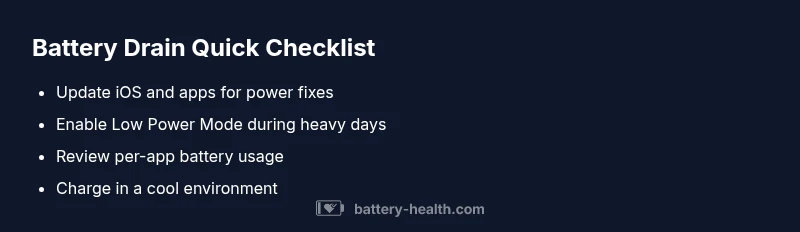
Enable Low Power Mode, dim the screen, and turn off brightness adaptivity. Disable Background App Refresh for non-critical apps. Turn off dynamic visual effects like motion and transparency if you notice battery speed. Keep iPhone in a cool, ventilated area during charging, and avoid overnight charging with high-power chargers if your device gets warm. These quick actions can extend life today while you plan a longer-term solution.
Software Updates and Battery Health
Software updates often include power management improvements that can reduce drain. Ensure iOS is up to date and install app updates. If an issue begins after an update, report it and rollback if possible. Sometimes a bug elevates background activity or mismanages resources. In such cases, the Battery Health team recommends patience and testing after each fix, since software changes can affect energy use for days.
Temperatures and Charging Habits
Extreme temperatures accelerate battery aging and can cause spurious drain. Avoid leaving the device in hot cars or freezing environments. Use official chargers and avoid counterfeit cables. If you use fast charging, monitor heat and remove the device from charger when it gets warm. Proper charging habits can slow deterioration and preserve usable life between replacements.
Prevention: Extend Battery Lifespan
Adopt preventative routines: keep software current, review background tasks weekly, and replace the battery when health declines noticeably. Use Power Saving Tools, limit battery-hungry features, and avoid letting the battery drain fully to 0% regularly. Battery Health recommends annual checkups, especially after major iOS releases, to catch issues before they escalate. A proactive approach saves time and money and preserves device longevity across years.
When to Seek Professional Help
If the battery still drains rapidly after the steps above, you may need professional help. Schedule a service appointment with Apple or a trusted technician to test the battery and internal components. A battery replacement can restore capacity and speed; a technician can confirm other hardware causes, such as a swollen battery or motherboard concerns. The Battery Health team emphasizes not delaying if the device becomes warm or unstable.
Steps
Estimated time: 60-90 minutes
- 1
Open Settings and review battery usage
Navigate to Settings > Battery to view the Battery Usage by App. Identify the top consumers over the last 24 hours and the last 7 days. Note any spikes after updates or new installs. This establishes a baseline for where drain is coming from.
Tip: Tip: Note exact times of usage spikes to correlate with app activity or notifications. - 2
Check Battery Health in Settings
Go to Settings > Battery > Battery Health to view Maximum Capacity and Peak Performance. If you see a Service message, plan for a replacement or service. This step helps decide whether software tweaks alone will help or hardware is needed.
Tip: Tip: If health shows 'Service', plan ahead for a battery replacement to restore life. - 3
Enable Low Power Mode and trim background tasks
Turn on Low Power Mode during long days and disable non-essential Background App Refresh. Review Location Services and set apps to ‘While Using’ or ‘Never’. These changes cut drain without sacrificing core features.
Tip: Tip: Revisit these settings after heavy app usage weeks to ensure ongoing efficiency. - 4
Update iOS and apps
Install the latest iOS and app updates, which include power-management fixes. If a problem starts after an update, consider reporting it and testing subsequent updates to gauge impact.
Tip: Tip: Before updating, back up data in case of update-related issues. - 5
Identify and manage resource-heavy apps
If a single app continually drains power, check for updates, permissions, or consider reinstalling. Some apps misbehave after OS updates and consume more energy.
Tip: Tip: Replace persistently heavy apps with lighter alternatives when possible. - 6
Plan replacement if health is poor
When Battery Health shows significant wear or service is needed, schedule a replacement with Apple or an authorized service provider to restore full capacity.
Tip: Tip: A professional check can also identify other hardware issues beyond the battery.
Diagnosis: iPhone battery drains quickly even with light use
Possible Causes
- highDegraded battery health (aging)
- highBackground activity (location services, push, widgets)
- mediumSoftware bugs or rogue app
- lowHigh screen brightness / always-on features
- lowTemperature or charging habits
Fixes
- easyCheck Battery Health and adjust settings to reduce background activity
- easyUpdate iOS and apps to fix software issues
- easyEnable Low Power Mode and adjust brightness
- hardReplace the battery if health is poor
FAQ
Why does my iPhone battery drain faster after a software update?
Software updates can temporarily increase battery usage as new features initialize. If drain persists beyond a few days, check for app updates and review background activity. Battery Health suggests monitoring and reporting if issues continue.
Updates can trigger higher background activity at first. If it keeps draining, check for app updates and adjust background activity settings.
Can background app refresh cause rapid battery drain?
Yes. Background App Refresh lets apps run in the background, which can consume power. Turn off non-essential apps or restrict refresh to wireless networks to reduce drain.
Background activity can drain power. Disable non-essential apps from refreshing in the background.
How can I check battery health on iPhone?
Open Settings > Battery > Battery Health to view Maximum Capacity and Peak Performance. If a service message appears, plan for replacement or service.
Go to Settings > Battery > Battery Health to see the health status and any service messages.
Is it safe to use fast charging for battery health?
Fast charging is generally safe when used with official chargers. However, excessive heat from fast charging can accelerate wear. Monitor temperature and avoid charging in hot environments.
Fast charging is ok if you use proper adapters, but heat can wear the battery faster.
When should I replace the iPhone battery?
Replace when Battery Health shows significant wear or service is needed, and you notice persistent rapid drain despite fixes. A replacement restores usable capacity and overall performance.
If health is poor and drain continues after fixes, consider replacement.
Does screen brightness affect battery life?
Yes. Higher brightness increases power use. Reducing brightness or enabling auto-brightness can noticeably extend battery life especially when you’re away from chargers.
Lower brightness helps extend battery life.
Watch Video
Quick Summary
- Check battery health first before chasing software fixes
- Reduce background activity to gain immediate relief
- Update software to access power-management improvements
- Replace battery if health is poor to restore life