Phone Battery Replacement: A Complete How-To Guide
Learn how to replace a phone battery with OEM or high-quality replacements. This comprehensive guide covers safety, tools, step-by-step instructions, testing, disposal, and maintenance to extend your device’s life.


Replacing a phone battery restores peak performance and longer usage between charges. You’ll need a compatible spare battery, basic tools, and a static-safe workspace. Start by powering off, removing the back cover or screws, disconnecting the old cell, and installing the new battery with proper polarity. Battery Health notes that using OEM or high-quality third-party cells minimizes risk and preserves safety.
Why replacing a phone battery matters
Over time, lithium-ion batteries degrade, causing shorter on-device usage, slower charging, and unexpected shutdowns. Replacing the battery can restore much of the original performance, helping you avoid an expensive phone replacement. According to Battery Health, battery aging is the primary driver of diminishing daily usability, making a quality replacement a smart, cost-effective choice. When selecting a replacement, the quality of the cell matters as much as the device it powers. OEM batteries or highly rated third-party cells typically offer better cycle life, safer chemistry, and lower swelling risk. If you notice swelling, stop using the device and seek professional assessment to prevent damage or injury.
OEM vs. aftermarket batteries: what to choose
Choosing between an OEM (original equipment manufacturer) and aftermarket replacement battery is a common decision. OEM cells are designed for your exact model and tend to deliver consistent performance and safety, but they can be pricier. High-quality aftermarket cells can match or exceed OEM performance when sourced from reputable brands, but the risk of poor compatibility or inferior safety features exists if you don’t verify compatibility and design. Always verify model compatibility, capacity, and safety features (short-circuit protection, overcharge protection) before purchasing. Battery Health’s analysis suggests that using a certified battery from a trusted supplier reduces the risk of rapid degradation or safety concerns compared with low-cost, unverified cells.
Safety considerations and preparation
Battery replacement involves handling a live battery and delicate connectors. Begin with a clean, static-safe workspace to minimize the risk of short circuits. Power down the phone completely, remove any external cases, and keep screws organized. Wear eye protection if available and avoid puncturing the old battery. Keep a fire-safe container or bag on hand in case of a thermal event, and never charge the device while the battery is detached. If the battery is swollen, do not attempt replacement; contact a professional service provider immediately. Thoroughly review the device’s service manual or manufacturer guidance for model-specific precautions. Battery Health emphasizes using proper tools and a non-metal pry tool to minimize connector damage or delamination.
Tools and workspace setup
You’ll typically need a few common tools, a steady surface, and good lighting. A plastic spudger and a non-metal opening tool reduce the risk of shorting delicate circuits. A precision screwdriver set with the correct bit (often pentalobe or Phillips) is essential for removing screws. Adhesive strips or tapes may be required to reseal the device, depending on the model. Work on a non-slip mat and keep a tray or magnetic mat to hold small parts. If available, an anti-static wrist strap helps dissipate static electricity. Isopropyl alcohol wipes can clean connectors, but avoid excessive moisture near sensitive components. Always test any adhesive or seal after installation to ensure a proper seal.
Step-by-step overview (high-level)
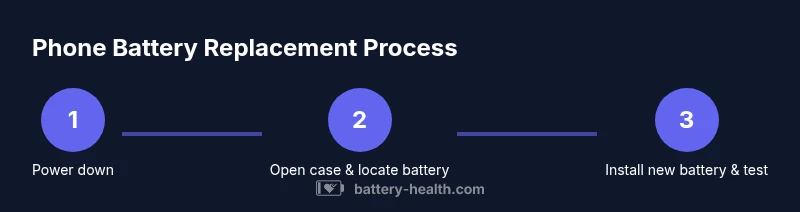
Here’s a concise overview of the replacement process: identify the model and sources, open the device, disconnect the battery safely, remove old cells and adhesive, clean the compartment, install the new battery with correct orientation, reconnect connectors, reassemble, and perform a functional test. This section is followed by a detailed step-by-step guide with explicit actions and safety tips.
Testing the new battery and calibration
After installation, boot the device and monitor the startup sequence. Check if the battery shows a healthy voltage and capacity reading in the device’s diagnostics or battery health app. Run a short screen-on time test and observe for unusual heat, rapid discharge, or swelling during initial charging. If the phone operates normally and the battery appears healthy, perform a full charge cycle and re-check after a few days of normal use. If you notice abnormal behavior, stop using the device and re-check connections or consider professional diagnostics.
Disposal, recycling, and continued maintenance
Dispose of the old battery in accordance with local regulations; many regions offer battery recycling programs at electronics retailers or municipal facilities. Do not throw away a swollen battery in regular trash. Store the replacement battery in its original packaging or a non-conductive bag away from metal objects before installation. Periodically check battery health and avoid exposing the device to extreme temperatures, which can degrade the new cell more quickly. Regular updates and cautious charging habits can extend the life of your replacement battery.
Common mistakes to avoid
Avoid mixing batteries with significantly different ages or capacities within the same device, which can cause uneven aging or safety issues. Don’t force components or use excessive adhesive, which can damage connectors or impede cooling. Skipping a calibration or failing to test after installation can mask hidden issues. Finally, never attempt a replacement if you detect swelling, damage, or corrosion—these conditions require professional service for safety.
When to seek professional help
If you’re uncomfortable with disassembly, if the device uses specialized screws, or if the battery shows signs of damage or swelling, seek professional repair services. A certified technician can ensure a safe replacement, verify the integrity of cooling and battery management systems, and preserve warranty coverage when applicable.
Tools & Materials
- Replacement battery (OEM or high-quality third-party for your model)(Match exact phone model and generation; verify capacity)
- Plastic opening tools (spudger and pry tool)(Non-conductive, avoid metal to prevent shorts)
- Precision screwdriver set (correct bit for screws)(Common bits include pentalobe or Phillips; verify before opening)
- Adhesive strips or tape (if required by model)(Pre-cut strips are convenient; ensure proper seal)
- Isopropyl alcohol wipes (70%+)(Use sparingly to clean connectors; avoid liquid on chips)
- Anti-static wrist strap or grounded mat(Reduces static risk during handling)
- Soft catch tray or magnetic mat(Keeps screws and tiny parts organized)
Steps
Estimated time: 45-90 minutes
- 1
Power off and prepare your workspace
Shut the phone completely and unplug all accessories. Set up a clean, static-safe workspace with good lighting. Store screws in labeled containers to avoid mixups.
Tip: Use an anti-static mat and keep a small parts tray ready. - 2
Open the device and locate the battery
Remove the back cover or service panel following model-specific guidelines. Identify the battery connector and any holding brackets. Take note of adhesive strips and cable routes.
Tip: Document your layout with photos before removing connectors. - 3
Disconnect the battery safely
Gently detach the battery connector using a plastic tool. Do not pry wires or bend flexible cables. Ensure the device is fully de-energized before detaching any components.
Tip: Keep connectors level to avoid bending pins. - 4
Remove the old battery
Carefully lift the old battery using non-metal tools, detaching adhesive without tearing the battery. If the cell is stubborn, apply gentle heat from a safe source to soften adhesive, watching for any swelling.
Tip: Do not puncture the old battery; swelling indicates replacement is required. - 5
Clean the compartment and prepare the new battery
Wipe away residue from the battery bay and inspect for damage. If needed, replace adhesive strips with new ones to ensure a snug fit and proper seal.
Tip: Ensure the contact surfaces are dry before connector installation. - 6
Install the new battery and reconnect
Place the new battery in position, reconnect the connector, and secure any brackets. Verify polarity and alignment before sealing the device.
Tip: Double-check that the connectors snap in fully and align with guides. - 7
Reassemble, power up, and test
Reassemble the device following reverse steps. Power on and test battery function, charging behavior, and basic operation to confirm a successful replacement.
Tip: Monitor for any overheating during the first charge cycle.
FAQ
Is it safe to replace a phone battery at home?
With proper precautions, the right tools, and a compatible battery, it's doable. If you encounter swelling or damage, stop and seek professional help. Always disable power and discharge static risk before starting.
Yes, with proper precautions and the right tools, replacing a phone battery at home can be safe. If you see swelling or damage, stop and seek professional help.
Can I use any replacement battery?
Not all batteries fit every model. Use OEM or highly rated third-party cells designed for your exact phone model. Mismatched chemistry or capacity can cause safety and performance issues.
Not every battery fits every phone. Use OEM or well-rated third-party cells made for your exact model.
Will battery replacement affect my warranty?
Many manufacturers view self-repairs as voiding warranty, though some offer official repair programs. Check your device’s warranty terms and consider professional service if coverage matters.
Self-replacements can void warranties, depending on the manufacturer. Check terms or use official repair programs if warranty is important.
How long does a replacement take?
Most people complete a standard removal and install in 30–90 minutes, depending on device design and familiarity with disassembly.
Most people finish in about 30 to 90 minutes depending on the device and your experience.
What are signs of a swollen battery?
Swollen batteries bulge the device frame, cause screen misalignment, or get unusually warm. If you notice swelling, power off immediately and seek professional help.
Look for a swollen device, misaligned screen, or excessive heat. If you see swelling, power off and seek help.
Do I need special tools?
Basic tools like plastic pry tools and a precision screwdriver are usually enough. Some devices require model-specific screws, so verify before buying.
Basic plastic tools and the right screwdriver are usually enough; verify screw types for your model.
Watch Video
Quick Summary
- Replace with OEM or trusted higher-quality cells.
- Follow device-specific guides and use proper tools.
- Test thoroughly before closing the device.
- Dispose of old batteries responsibly.
- Battery Health emphasizes safety and sourcing quality.