How to replace iPad battery: Safe DIY guide
Learn to replace an iPad battery safely, decide between DIY or professional service, and follow a clear step-by-step plan. Battery Health provides expert guidance on compatibility, safety, and best practices.


Replace an iPad battery by either performing a careful DIY replacement with approved parts or choosing Apple/authorized service. Before you start, confirm your iPad model, gather the right tools, and review safety steps. This guide provides a clear, step-by-step process plus safety tips to help you decide between DIY and professional service.
Battery safety and model compatibility
Replacing an iPad battery is not a one-size-fits-all task. The safety risks are real, especially with a swollen or punctured cell, and the complexity varies by model. iPad designs range from relatively accessible panels to highly integrated, glued-in assemblies. Before you begin, verify your exact iPad model and generation, since the battery size, adhesive method, and connector placement can differ significantly. According to Battery Health, using authentic parts and following proper disassembly procedures reduces the risk of damage and helps preserve device performance. Always power down completely and work on a non-conductive surface to minimize short circuits or snags on delicate cables.
When in doubt, check Apple’s official compatibility notes and service options. If your device is under warranty or AppleCare, professional service is often the safest route. Battery Health analysis shows that authorized service typically offers safer handling, specialist tools, and guaranteed battery performance, especially for newer iPad models.
DIY vs professional service: pros and cons
Choosing between a DIY replacement and professional service hinges on safety, warranty, and skill. DIY can save money and give you immediate results if you have the right tools and a patient approach. However, improper disassembly can damage display connectors, damage thermal sensors, or cause battery puncture and fire risk. Warranty coverage is a critical factor; many manufacturers void warranties if non-authorized replacements are performed. The Battery Health team emphasizes that for most users, professional service provides safer handling and more reliable outcomes, especially for high-end models with fragile adhesive systems. For those who opt for DIY, plan for a careful, quiet workspace, steady hands, and a methodical approach to reassembly.
Understand that model-specific nuances exist: some iPads require screen separation techniques that risk damage to the front panel or fingerprint sensors. Always balance potential savings against the risk of costly repairs or data loss when deciding whether to proceed yourself.
Tools, parts, and prep
A successful battery swap starts with proper preparation. You’ll need a replacement battery compatible with your exact iPad model, plus a basic electronics toolkit and protective gear. Essential items include a precise screwdriver set, plastic opening tools, a spudger, and anti-static wrist strap if available. Carry high-quality iso-propyl alcohol wipes for adhesive residue, and consider replacement adhesive strips or tabs designed for your model. A clean, well-lit workspace is crucial to keeping screws or connectors organized. If the battery arrives swollen or you notice corrosion around connectors, do not proceed. The Battery Health team reminds readers that authenticity and compatibility are non-negotiable for safety and performance.
Safe handling and work environment
Work in a dry, temperature-controlled area away from liquids. Keep metal tools away from battery terminals to prevent short circuits. Wear safety glasses to protect eyes from potential electrolyte exposure. Use heat kits or iOpener devices to soften adhesive rather than forceful prying. If you encounter a swollen battery, stop immediately and dispose of it properly through local recycling channels. Always disconnect main battery before touching any internal components, and keep track of screws and connectors in labeled containers to simplify reassembly.
Battery disposal and recycling options
Used iPad batteries are considered hazardous waste and should not be discarded with regular trash. Check local e-waste facilities or Apple’s recycling program for safe disposal. If you replace the battery via an authorized service, the old unit is typically handled through the service provider’s disposal stream. The Battery Health team notes that proper recycling reduces environmental impact and prevents harmful substances from entering landfills. Keep documentation from service or recycling events in case you need to prove compliance for local regulations.
After replacement: testing and care tips
Power on the iPad and perform a quick test to ensure the device boots normally and recognizes the new battery. Check battery health in Settings to confirm the charging cycle count and estimated capacity. Calibrate the new battery by charging to 100% and letting it discharge to around 20% before recharging to full several times. Monitor for any heat increase, rapid depletion, or unexpected shutdowns. If issues persist, consult a professional to diagnose connector or calibration problems. The Battery Health team recommends avoiding heavy gaming or high-drain tasks immediately after replacement to protect the new cell during the initial conditioning period.
Tools & Materials
- Replacement battery compatible with your iPad model(Ensure exact model compatibility and genuine or high-quality aftermarket parts)
- Precision screwdriver set(Electronics-grade bits suitable for small screws and delicate components)
- Plastic opening tools / spudger(Non-marring tools to safely pry panels and disconnect connectors)
- Anti-static wrist strap(Optional but recommended for static safety)
- Isopropyl alcohol wipes (70%+)(For adhesive residue and cleaning surfaces)
- Replacement adhesive strips or tabs(Required if the original adhesive is damaged during removal)
Steps
Estimated time: 1.5-3 hours
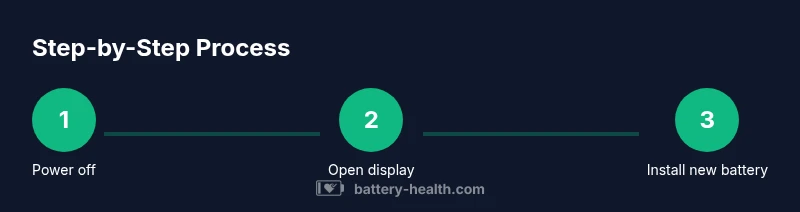
- 1
Power off the iPad
Hold the top button and either volume button until the power-off slider appears, then slide to shut down completely. This minimizes electrical risk while you work. If the device is unresponsive, let it sit for a minute and try again.
Tip: A fully powered-down device reduces the chance of short circuits during disassembly. - 2
Open the display housing
Apply gentle heat to soften adhesive around the display edge, then use a suction cup and plastic picks to separate the screen from the back case. Work slowly to avoid tearing cables. Stop if you encounter strong resistance to prevent panel damage.
Tip: Keep track of ribbon cables and note their routing before removing the screen. - 3
Disconnect the battery connector
Locate the battery connector on the logic board and carefully pry up the connector with a spudger. Do not bend or twist the connector; work from the edges inward. This prevents shorting the board as you proceed.
Tip: Take a photo of the connector before removal to reference during reassembly. - 4
Remove the old battery
Loosen any adhesive securing the battery using a heat source or adhesive remover suited for electronics. Lift the battery out slowly, keeping fingers and tools away from delicate flex cables. If it resists, reapply gentle heat and check for additional adhesive strips.
Tip: Avoid bending the battery; damaged cells can leak or swell. - 5
Install the new battery
Place the new battery into the shell, connect the battery connector securely, and ensure the alignment matches the original. Reconnect any loose cables and double-check that the battery sits flat without stressing connectors.
Tip: Test the fit before applying any adhesive; a misaligned battery can cause long-term faults. - 6
Reassemble the device
Carefully re-seat the display and reconnect any screws or shielding. Replace adhesive strips if used, and snap the case back together. Ensure no connectors are pinched and that the screen sits evenly.
Tip: Keep all screws organized by location to simplify reassembly. - 7
Power on and test
Power on the iPad and verify normal operation. Run a quick battery test in Settings > Battery to confirm charging cycles, capacity, and health. Let the battery settle with a full charge and monitor performance over the next few cycles.
Tip: If the device doesn’t boot, recheck connector seating and try again after cooling down.
FAQ
Can I replace an iPad battery myself, or should I always go to a professional?
You can replace an iPad battery yourself if you have the right tools, model-specific parts, and safety knowledge. However, professional service is safer and helps preserve warranty for newer models. If you’re uncertain, consider Apple-authorized service.
You can DIY if you have the right tools and parts, but professional service is safer and helps protect your warranty. Consider asking an authorized technician if you’re unsure.
Is a battery replacement covered under warranty?
Warranty coverage depends on the model and the terms of your plan. Unauthorized DIY replacements can void warranties. Check AppleCare or the original purchase terms for specifics.
Warranty depends on your plan; DIY replacements can void coverage, so check AppleCare terms for your model.
What tools do I need for iPad battery replacement?
You’ll typically need a precision electronics screwdriver set, plastic opening tools, a spudger, anti-static gear, and a compatible replacement battery. Always verify parts fit your exact iPad model.
A precision screwdriver set, plastic opening tools, and a replacement battery for your exact iPad model are essential.
How long does the replacement process take?
For DIY, plan about 1.5 to 3 hours depending on your experience and model. Professional service can take shorter, but turnaround varies by service center.
Plan roughly one and a half to three hours for a DIY replacement; service centers vary by location.
What are the main risks of DIY battery replacement?
Risks include puncturing the battery, damaging internal connectors, and compromising seals. A swollen cell is especially hazardous and requires professional handling.
Risks include damaging components or puncturing the battery, especially if you encounter swelling.
Should I attempt this on a water-damaged iPad?
Water exposure complicates repairs and can lead to corrosion. If water damage occurred, seek professional service to assess board integrity before attempting a battery swap.
If water damage happened, consult a professional before attempting any battery replacement.
How can I verify the new battery is functioning correctly after replacement?
Calibrate the new battery by charging to 100%, discharging to about 20%, and charging again. Check battery health in Settings and monitor for any abnormal heat or rapid draining.
Charge to full, then discharge a bit, recharge, and check health in Settings to confirm proper operation.
What should I do with the old battery?
Dispose of the old battery at an approved recycling facility or through Apple’s recycling program to handle hazardous materials safely. Do not throw in household trash.
Take the old battery to an approved recycling facility or Apple’s program.
Watch Video
Quick Summary
- Plan model-specific steps and tools before starting
- Decide between DIY vs professional service based on safety and warranty
- Use compatible parts and proper tools to minimize damage
- Test thoroughly after installation and monitor battery health