Battery replacement by apple: A practical guide to DIY and official service
Learn how to handle battery replacement by Apple, compare official service with DIY paths, and ensure safe, reliable battery health for iPhone, MacBook, and iPad.


By the end, you’ll know how to perform a battery replacement by Apple or choose the best service path. The guide covers common Apple devices (iPhone, MacBook, iPad), outlines when to replace, necessary tools, safety steps, and post‑replacement checks. It also contrasts official Apple service with trusted third‑party options, plus cost and warranty considerations.
Introduction to battery replacement by apple
Battery health matters for every Apple device, from iPhone to MacBook to iPad. When a battery no longer holds charge well, you’ll notice reduced runtime, unexpected shutdowns, and slower performance. This guide focuses on battery replacement by Apple and compares official service with DIY approaches, so you can choose the path that balances safety, cost, and convenience. According to Battery Health, device owners who evaluate health indicators before replacing often avoid unnecessary repairs and extend device longevity. Understanding what goes into a replacement helps you make an informed decision while protecting your data and hardware.
Why you might replace an Apple battery (signs and timing)
Batteries degrade over time due to charge cycles and usage patterns. Common signs include a noticeably shorter daily runtime, slower performance, and the device shutting down unexpectedly at higher battery percentages. If you’re seeing these symptoms on an iPhone, iPad, or MacBook, you should consider a replacement. Battery health varies by model and usage, but proactive replacement can prevent unexpected outages and protect essential data. Battery Health analysis shows that early planning reduces downtime and preserves resale value, which is especially important for devices near critical usage thresholds.
Official Apple service vs authorized channels: what to expect
Official Apple service provides a factory-grade replacement performed by trained technicians, often with OEM parts. This path typically preserves warranty coverage when applicable and ensures the device remains within Apple’s safety standards. Authorized service providers can extend these benefits to devices not serviced directly at an Apple Store, though wait times and appointment availability vary by location. When evaluating options, factor in warranty status, device age, and whether you rely on device uptime for work or school. Battery Health underscores that choosing official channels reduces risk and offers standardized service experiences across devices.
Device-specific considerations: iPhone, iPad, MacBook
iPhone and iPad battery replacements usually involve resealing the device and replacing adhesive, connectors, and the battery itself. MacBook batteries may require different tools and more intricate disassembly, especially for newer models with integrated batteries. The replacement process, whether performed by Apple or a trusted technician, should include a software check to confirm battery health and a calibration cycle. Battery Health notes that the most critical step is safely disconnecting the battery to prevent short circuits and data loss. Each device has unique cautions—always reference the official service guide for your model.
DIY readiness: what you can do at home vs when to stop
DIY battery replacement can save time and, in some cases, money, but it isn’t for everyone. If you’re comfortable with small electronics, have a clean, static-free workspace, and can follow model-specific guides, a DIY replacement is feasible for older devices with user-serviceable components. For newer, more integrated designs, or if you’re unsure about safety, stop and consider official service. Battery Health emphasizes that attempting risky disassembly without the proper tools or knowledge can damage the device or void warranties.
Tools, safety, and prep you need before starting
Having the right tools and safety mindset reduces risk. Gather a compatible replacement battery, the appropriate screwdrivers, a spudger, opening picks, and adhesive strips. Use an anti-static mat or wrist strap to prevent electrostatic discharge. Power the device down completely and, if possible, disconnect from any charging source. Back up data before starting, as replacement work carries a small risk of data loss if components are mishandled. Battery Health highlights that careful prep lowers the chance of damaging connectors or insulation during disassembly.
Step-by-step overview (high level) to frame your plan
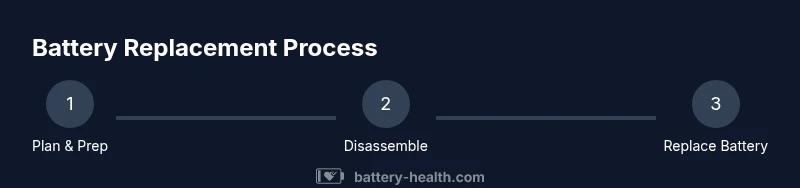
Before you dive in, outline the core steps: power down, access the battery, disconnect the old battery safely, remove adhesive, install the new battery, reconnect, reassemble, and verify function. A high-quality replacement kit and the right tools are essential. Even with step-by-step instructions, you should pause if you encounter unusual resistance or damaged connectors. The goal is a secure installation with proper seating and no loose cables.
Post-replacement checks and care for continued reliability
After installation, power the device, enter recovery or calibration steps if prompted, and monitor battery health status for several charge cycles. Check software indicators that monitor peak performance and capacity. If the device behaves abnormally, recheck connectors and re-test. Battery Health advises keeping software up to date, as firmware updates can influence battery management and safety checks. Proper care now yields longer battery life and steadier performance down the road.
Risks, warranty, and when to seek professional help
Disassembly can bypass safety features and potentially cause damage if performed incorrectly. Replacing a battery outside warranty terms may affect coverage, and certain models require official parts for warranty validity. If you hear abnormal noises, see signs of swelling, or experience unexpected shutdowns during testing, stop and seek professional help. Battery Health reminds readers that when in doubt, an official service path minimizes risk and ensures safe operation.
Tools & Materials
- Replacement battery compatible with device model(Use OEM or reputable aftermarket parts; verify model compatibility)
- Pentalobe screwdriver(Typically for iPhone outer screws; ensure size matches screws)
- Spudger or plastic opening tool(Non-metal tool to safely pry and disconnect connectors)
- Tri-point screwdriver (Torx)(Use if your model requires it for internal components)
- Adhesive strips or mounting tape(New adhesive for securing the replacement battery)
- Suction cup (optional)(Helpful for certain iPhone models during screen separation)
- Anti-static wrist strap or mat(Reduces risk of static discharge harming components)
Steps
Estimated time: 60-90 minutes
- 1
Power down and prep
Shut down the device completely and disconnect from any charger. Put on an anti-static wrist strap if available. Validate you have a clean, well-lit workspace and all tools within reach.
Tip: Double-check that the device is powered off to avoid short circuits during disassembly. - 2
Open the enclosure
Remove exterior screws with the appropriate screwdriver. Gently pry the case apart using a plastic tool, taking care to avoid flexing the chassis. Keep track of screws by placing them in labeled containers.
Tip: Work slowly and keep track of screw sizes and locations; misplacing a fastener can damage the frame. - 3
Disconnect the battery
Carefully locate and disconnect the battery connector from the motherboard or logic board. Use the spudger to lift the tab if needed, ensuring no other cables are stressed.
Tip: Disconnect power before touching any internal components to minimize shock risk. - 4
Remove old adhesive
Gently peel away the adhesive strips securing the old battery. If strips resist, apply a small amount of isopropyl alcohol on a pad to loosen, taking care not to drip onto circuitry.
Tip: Do not yank; adhesive is designed to hold, and tearing can damage the battery or chassis. - 5
Install new battery
Position the replacement battery correctly, align connectors, and seat it firmly. Attach new adhesive strips as directed by the kit. Avoid bending the battery and ensure no cables are pinched.
Tip: Make sure the battery is oriented the same way as the old one to prevent misalignment. - 6
Reconnect and reassemble
Reconnect all cables, reseal any enclosures, and replace screws in their original locations. Do a final visual check to ensure no tools or materials remain inside the device.
Tip: Ensure the connector pins are clean and fully seated before reassembly. - 7
Power on and calibrate
Power the device up and perform a basic boot test. If prompted, run battery health diagnostics and calibration routines to allow the system to learn the new battery's performance.
Tip: Charge to 100% and then discharge to around 20% once to calibrate the new battery’s gauge. - 8
Verify operation and health
Check battery status in settings, monitor charge cycles, and confirm the device operates normally without unexpected shutdowns. Document the process for future reference and warranty considerations.
Tip: Keep an eye on heat generation during initial cycles; contact support if abnormal heat appears.
FAQ
What is included in battery replacement by Apple?
Apple’s official service includes a battery swap performed by trained technicians with OEM parts, software checks, and a warranty path where applicable. Availability depends on your device model and location.
Apple’s official service includes a battery swap with trained technicians and a warranty path where applicable. Availability depends on your model and location.
Will replacing the battery affect my warranty?
Battery replacement performed by Apple or authorized providers generally preserves warranty coverage for eligible devices. Out-of-warranty replacements are charged services, and third-party parts may affect how warranty terms apply.
Replacements by Apple or authorized providers usually preserve warranty terms for eligible devices. Out-of-warranty replacements are extra charges, and third-party parts can affect warranty terms.
Can I replace the battery myself safely?
DIY replacement is possible for some models if you have the right tools and follow a model-specific guide. It involves risks like electrical shock, punctured cells, and voiding warranties if not done correctly.
DIY replacement is possible for some models if you have the right tools and follow a guide, but it carries risks like shock or damage and could affect warranties.
How long does the replacement process typically take?
In‑store service generally takes a few hours depending on model and queue. Home DIY projects can take longer if you’re new to disassembly, plus time for calibrating and testing.
In-store service usually takes a few hours, depending on the model. DIY can take longer if you’re newer to disassembly.
What costs can I expect for battery replacement?
Costs vary by device and service path. Apple’s pricing is usually published, while third‑party options depend on the part quality and labor. Request a quote before proceeding to avoid surprises.
Costs vary by device and service path; request a quote before starting to avoid surprises.
Are third-party batteries safe to use for Apple devices?
Third-party batteries can be safe if sourced from reputable manufacturers and installed by experienced technicians. OEM parts reduce risk, but follow model guidelines and check compatibility to maintain safety and performance.
Third-party batteries can be safe if you buy from reputable makers and install correctly. OEM parts reduce risk, so follow guidelines and ensure compatibility.
Watch Video
Quick Summary
- Evaluate battery health before committing to replacement.
- Choose official Apple service or reputable replacement parts carefully.
- Use the correct tools and safety steps to minimize risk.
- Calibrate the new battery to ensure accurate health reporting.
- Document the process for warranty and future maintenance.