Apple Battery Replacement: Safe Step-by-Step Guide
Learn how to perform an Apple battery replacement safely for iPhone and MacBook. This comprehensive guide covers timing, safety, tools, DIY vs professional options, and post-install testing.


This guide explains how to perform an Apple battery replacement safely for common devices like iPhone and MacBook. You'll learn when to replace, what tools and parts you need, how to identify swollen cells, and a clear, step-by-step process to minimize risks and preserve device performance. According to Battery Health, use genuine Apple parts and proper safety protocols.
Understanding when to replace an Apple battery
Batteries age with use, and performance tends to decline as cells lose capacity. If you notice shorter run times, unexpected shutdowns, reduced peak performance, or noticeable swelling, a replacement should be considered. This guide focuses on standard consumer devices like iPhone and MacBook. According to Battery Health, regular diagnostics can help you anticipate failure before it disrupts daily use. Understanding your device’s battery health and charge cycles provides a practical baseline for deciding when to replace. Keep in mind that newer devices may still be within warranty or service window, so check Apple’s official policies before proceeding.
To evaluate your device, review battery health indicators available in settings, monitor power usage during peak tasks, and compare observed performance to your device’s baseline when new. If you rely on critical workflows or reside in extreme temperatures, you may notice accelerated wear. In all cases, avoid attempting a replacement if you’re unsure of your safety or the device’s integrity, and consider professional service for high-risk models.
Safety first: risks and precautions
Battery replacement involves handling live components and reactive materials. Risks include puncturing a Li-ion cell, chemical exposure, and short circuits that can cause heat, smoke, or fire. Always power down the device completely, disconnect from chargers, and work in a static-safe environment. Use a non-conductive work surface and wear an anti-static wrist strap when possible. If you observe swelling, never charge the device or press on the battery; swollen cells can vent violently and require professional disposal. After replacement, perform a careful visual inspection for torn adhesives or bent connectors and avoid forcing parts back together. Following proper safety protocols reduces harm and preserves surrounding components.
What you need: parts and tools
Before starting an Apple battery replacement, assemble the necessary tools and get a compatible battery. Essential items include a Pentalobe or appropriate screwdriver set, a spudger, non-metal opening tools, a suction cup, plastic picks, an anti-static wrist strap, and a replacement battery certified for your model. Also have isopropyl alcohol wipes and adhesive strips on hand for clean reassembly. Always choose genuine or Apple-authorized replacement parts to maintain safety features and performance. If you’re uncertain about model compatibility, consult Apple’s official service guidelines or a trained technician.
DIY vs professional service: pros and cons
Do-it-yourself battery replacement can save money and teach valuable repair skills, but it requires careful handling, the right tools, and model-specific knowledge. For devices with complex or glued assemblies, or for models with swollen batteries, professional service is often safer and may preserve warranty coverage. Professional technicians have calibrated tools, controlled environments, and proper safety disposal channels for old cells. If your device is still under AppleCare or a valid repair program, weigh the potential safety risks against cost savings. Battery Health recommends evaluating model-specific guidance before attempting a DIY replacement.
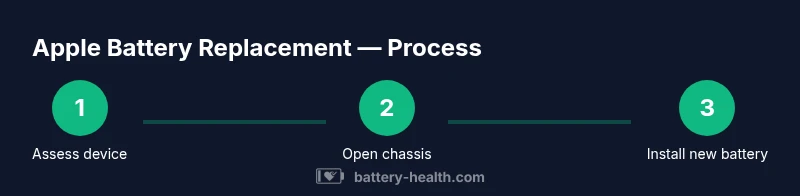
Step-by-step overview (high-level)
This overview outlines the core phases you’ll encounter:
- Assess: confirm battery health and model compatibility, gather tools and parts.
- Prepare: power down, unplug, and create a static-free workspace.
- Open: access the battery compartment without damaging the screen or casing.
- Disconnect: safely detach the battery connector to cut power.
- Replace: remove adhesive, install the new cell, and reconnect connectors.
- Reassemble and test: seal the device, boot up, and verify charging and capacity behavior.
For a detailed, model-specific sequence, follow the step-by-step section below and refer to the official Apple service guidelines.
Tools and safety references (quick checklist)
Keep this quick checklist handy to avoid common missteps:
- Use genuine Apple parts and the correct tool sizes for your model.
- Wear anti-static protection and avoid touching connectors with bare hands.
- Work on a clean, non-conductive surface; keep track of screws and clips.
- Do not force components back into place if something doesn’t fit easily.
- If you’re unsure about the process or encounter swelling, stop and seek professional service.
Post-replacement testing and calibration
After installation, perform a full device boot and test basic functions: screen responsiveness, camera, speakers, and charging behavior. Let the device reach a full charge, then run a few cycles to observe how the battery holds charge and responds to load. For best results, calibrate the new cell by charging to 100% after a full discharge, then recharge again to 100% to align the battery’s reporting with the device’s power management system. Monitor battery health over the next days to ensure stability and contact support if any anomalies appear.
Common mistakes to avoid and what to do instead
Common pitfalls include prying too hard, puncturing the battery, or reusing old adhesive that fails to hold the new cell securely. Always disconnect power before handling connectors and take time to follow model-specific disassembly guides. If you’re not confident, seek professional help rather than risking device damage or personal injury.
Battery disposal, recycling, and warranty considerations
Dispose of old batteries through approved recycling programs or an Apple Authorized Service Provider. Do not throw Li-ion cells in regular trash. If your device is under warranty or AppleCare, replacing the battery through Apple or an authorized partner may preserve coverage. Retain replacement part documentation and receipts for future service inquiries.
Tools & Materials
- Pentalobe screwdriver (model-dependent)(For iPhone chassis screws; ensure correct size)
- Tri-point Y000 screwdriver(For certain internal fasteners on Apple devices)
- Spudger tool(Non-conductive for safe connector handling)
- Plastic opening picks(Prevent scuffs and casing damage)
- Suction cup(Gently lift display components)
- ESD-safe wrist strap(Reduce static discharge risk)
- Replacement battery (Apple model-compatible)(Genuine or Apple-authorized part)
- Isopropyl alcohol wipes(Clean surfaces before resealing)
- Adhesive strips and cleaning materials(New adhesive to secure battery and components)
Steps
Estimated time: 60-120 minutes
- 1
Power down and prep
Shut down the device completely, unplug from any charger, and remove any SIM tray or external peripherals. Place the device on a non-conductive surface and wear an anti-static wrist strap if available. This initial step reduces the risk of electric shock and accidental short-circuits.
Tip: Document screw locations as you remove components to avoid misplacement later. - 2
Open the chassis
Apply a gentle amount of suction to lift the display or access panel, then insert plastic picks to disengage clips. Work slowly to avoid cracking glass or bending cables. Keep track of hollowed-out edges and avoid forcing connectors.
Tip: Use a light touch; overheating can warp delicate plastics and seals. - 3
Disconnect the battery
Locate the battery connector and carefully detach it from the motherboard or logic board using a non-metal tool. Confirm there is no residual power by attempting a brief wake command after retraction. Do not pry on the connector or bend cables.
Tip: Take a photo of the connector orientation before removal for correct reassembly. - 4
Remove the old battery
Peel away old adhesive strips without puncturing the cell. If necessary, soften adhesives with a small amount of isopropyl alcohol, working from edges inward. Lift the battery straight up and avoid flexing the cell.
Tip: Do not twist or bend the battery during removal; a puncture can cause a dangerous reaction. - 5
Install the new battery
Align the new battery and connect the contact to the motherboard. Secure with fresh adhesive strips, ensuring the cell is seated flat. Recheck all connectors and confirm there are no loose cables.
Tip: Do a quick test with the motherboard cover off to confirm fit before sealing. - 6
Reassemble and test
Reconnect the display, reattach the outer shell, and power the device on. Observe boot behavior, charging, and normal operation. If the device fails to power, recheck all connections and seek professional help if needed.
Tip: Calibrate the new battery by charging to 100% after a full discharge during initial use.
FAQ
Can I replace an Apple battery myself?
It’s possible for capable users with the right tools and model-specific guides, but DIY work carries safety risks. If you’re unsure, seek professional service to avoid damage or injury.
You can replace it yourself if you’re confident with tools and model-specific instructions, but for safety, professional service is recommended if you’re unsure.
Is it safe to replace a swollen Apple battery at home?
A swollen battery is dangerous and should be handled by a professional or authorized service provider. Do not puncture or apply pressure.
A swollen battery is dangerous; avoid DIY handling and contact a professional service.
Will replacing the battery affect warranty?
Replacing the battery with genuine parts at an authorized service center typically preserves warranty, while DIY replacements may void coverage depending on policy.Check your warranty terms.
Warranty depends on your policy; authorized service usually preserves it, DIY may void it.
Where can I recycle an old Apple battery?
Use Apple Authorized Service Providers or local electronics recycling programs that accept Li-ion batteries. Do not throw batteries in regular trash.
Recycle at an authorized provider or local electronics recycler; never trash Li-ion batteries.
Do I need special tools for Apple battery replacement?
Yes, model-appropriate screwdrivers, spudger, plastic opening tools, and an anti-static setup are essential for safe replacement.
You’ll need the right screwdrivers, a spudger, and anti-static gear.
How long does a typical Apple battery replacement take?
A typical in-depth replacement can take about an hour or more, depending on model complexity and whether you’re doing it yourself or via a service.
Most replacements take about an hour, depending on the device and method.
Watch Video
Quick Summary
- Assess battery health before replacement
- Use genuine parts and proper tools
- Follow model-specific steps to avoid damage
- Calibrate and test after installation
- Dispose of the old battery responsibly