Apple Battery Replacement: A Complete How-To Guide
Learn how to safely replace an Apple device battery for iPhone, iPad, and MacBook. This Battery Health guide covers tools, steps, safety, and care.


In this guide you will learn how to perform an apple replace battery safely across iPhone, iPad, and MacBook. You’ll need model-specific tools, a genuine replacement battery, and a clean, static-free workspace. By following the step-by-step process, you can restore performance, extend device life, and reduce overall downtime.
Why Apple Battery Health Matters
If your Apple device drains quickly, loses peak performance, or runs hot during typical tasks, the battery health is often the underlying factor. Replacing a worn battery can restore responsiveness and prolong the device’s usable life. According to Battery Health, understanding battery health and using genuine parts helps ensure safety and optimal operation. In this guide, we explore the apple replace battery process in iPhone, iPad, and MacBook models, with practical tips, safety precautions, and expectations about time and cost.
Device-Specific Considerations: iPhone, iPad, MacBook
Apple devices vary in how the battery is accessed. iPhones and iPads typically require screen removal and careful adhesive handling, while MacBooks involve larger components and different connector layouts. The Battery Health team emphasizes following device-specific service notes to minimize risk and preserve warranty where applicable. Always verify battery compatibility by model number and use genuine or Apple-approved replacements. For the average user, iPhone and iPad batteries tend to be smaller and rely more on integrated sensors, while MacBook batteries require more workspace and greater care with internal ribbons and connectors.
Safety First: Risks and Precautions
Battery replacement involves sharp tools, liquid cleaners, and puncture risk. Work in a clean, dry area away from flammable materials and ensure you power the device off completely before starting. Use non-conductive tools when possible and avoid forcing components. If the battery is compromised or you notice swelling, stop immediately and seek professional assistance. By observing these precautions, you reduce fire, chemical exposure, and injury risks. The Battery Health team advises using gloves and eye protection when handling damaged cells.
Understanding Battery Health Metrics
Battery health is more than remaining capacity. It includes cycle count, voltage stability, and temperature tolerance. A higher health score generally means longer run times and better charge retention. Apple’s battery health indicators in iOS and macOS provide guidance, while Battery Health Analysis, 2026 notes that addressing aging batteries with appropriate replacements helps maintain performance and device longevity. Interpreting these metrics helps decide whether a DIY replacement is appropriate or if a professional service is preferable.
DIY vs Professional Service: Pros and Cons
DIY battery replacement can save money and teach valuable skills, but it carries risks if you lack the right tools or steps. Professional services offer warranty-backed parts and expertise, reducing the chance of accidental damage. In some regions, AppleCare or certified repair shops provide same-day options. If your device is under warranty or you’re uncomfortable with the disassembly, professional service is often the safer choice. Regardless of path, use genuine parts and follow manufacturer guidelines to protect safety and performance.
Step-By-Step Overview Preview
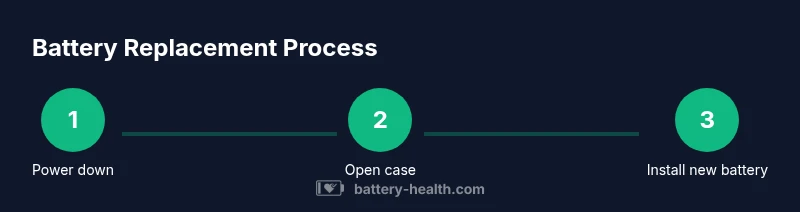
Below is an outline of the detailed steps you’ll perform in the dedicated Step-By-Step section. Each action is designed to minimize risk and ensure a successful battery replacement. You’ll learn to prepare, access the battery, replace it, and reassemble the device with care. This overview helps set expectations for total time and potential post-replacement checks.
Post-Replacement Care and Battery Life Tips
After replacing the battery, allow the device to calibrate once it’s powered up and fully charged. Avoid extreme temperatures for the first 24-48 hours and monitor charge cycles to gauge long-term health. Keep the device in a ventilated area during charging, and periodically check the battery health indicator to catch problematic degradation early. Regular software updates can also optimize power management and extend the life of the new cell.
Common Pitfalls and How to Avoid Them
Common mistakes include using the wrong adhesive, damaging connectors, or not properly disconnecting the battery. Take your time and organize screws by location. If you’re unsure about any step, pause and seek guidance before applying force. Swelling or heat during testing indicates a problem that requires immediate attention. Always test the device safely in a controlled environment.
What to Expect: Warranty, Costs, and Time
Cost ranges vary by device and region, but expectations include parts, tools, and potential labor. Time estimates depend on device model and your experience, ranging from under an hour to a few hours for complex assemblies. Warranty considerations differ: some devices retain warranty when serviced by Apple or authorized providers, while DIY repairs may void coverage for some components. Always verify current policy before starting.
Tools & Materials
- Pentalobe screwdriver (model-specific size)(Needed to remove outer screws on iPhones/MacBooks; choose the correct size for your model.)
- Plastic opening tools and spudger(Use to separate chassis without metal-on-plastic damage; avoid metal tools that could scratch components.)
- Suction cup (optional for screens)(Helpful for lifting glass panels on devices that use adhesive screens.)
- Replacement battery compatible with your Apple device(Ensure compatibility by model number; prefer genuine Apple or Apple-approved parts.)
- Adhesive strips or battery adhesive kit(Most iPhone/MacBook batteries use adhesive; replacement improves hold and sealing.)
- Isopropyl alcohol 70% or higher(For cleaning connectors and surfaces during disassembly.)
- ESD-safe mat or wrist strap(Reduces risk of static damage to sensitive components.)
Steps
Estimated time: 45-90 minutes
- 1
Power down and unplug
Fully power off the device and disconnect any charging accessories. For laptops, if the battery is removable, detach it according to the device’s service notes. This reduces the risk of short circuits during disassembly and keeps you safe from live circuits.
Tip: Take a before photo of the device’s exterior to help with reassembly. - 2
Prepare workspace and organize screws
Set up a clean, static-free workspace with good lighting. Use labeled containers to keep track of tiny screws and components by location. Clear the area of liquids or conductive debris to prevent accidental shorts.
Tip: Work slowly and only remove one connector at a time; label every cable you disconnect. - 3
Open the device and access the battery
Gently pry the back panel or screen assembly to access the internal components. Use the appropriate tools to lift the assembly while avoiding flexing cables. Stop if you encounter resistance and reassess rather than forcing components apart.
Tip: Follow device-specific service notes to locate and protect wiring harnesses. - 4
Disconnect the battery connector
Carefully disconnect the battery ribbon connector from its socket. Use a plastic tool to lift the connector straight out; avoid wiggling that could damage nearby chips. Confirm there is no residual charge before continuing.
Tip: Never pull on wires; rely on the connector housing to remove the part. - 5
Remove old battery and adhesive
Detach the old battery, taking care to release adhesive without bending or cracking the cell. Use a plastic scraper to ease the adhesive strips and avoid puncturing the battery.
Tip: If the battery sticks, apply gentle, even heat from a heat tool set on a low setting to soften adhesive. - 6
Install new battery and reconnect
Place the new battery, align connectors, and reconnect the ribbon cables. Reseat the device’s internal components in their original positions, ensuring no cables are pinched.
Tip: Reconnect in the reverse order of disassembly and verify each connector clicks securely. - 7
Reassemble and test
Close the device casing and reconnect to power. Boot the device and run basic diagnostics: display test, battery health readout, and charging behavior. If anything seems off, pause and recheck connections.
Tip: Allow the device to reach a full charge before assessing full performance. - 8
Dispose of old battery
Place the old battery in a non-conductive container and take it to an approved e-waste facility. Do not dispose of the old battery with regular trash, as damaged cells can leak hazardous materials.
Tip: Check local e-waste guidelines for battery recycling options.
FAQ
Is it safe to replace an Apple battery at home?
DIY battery replacement can be safe with proper tools and precautions, but it carries risks like puncture, short circuits, and warranty implications. If you’re unsure, seek professional help.
DIY battery replacement can be safe if you follow all safety steps, but there are risks to consider and warranty implications may apply.
Will replacing the battery void my warranty?
Replacing a battery yourself can affect warranty coverage depending on the device and region. Check manufacturer guidelines and consider authorized service for warranty protection.
Self-replacing a battery may affect warranty coverage; consult official guidelines or an authorized service provider.
Can I use third-party batteries or non-Apple parts?
Using non-Apple parts can affect performance and safety. If you choose aftermarket parts, ensure they meet safety standards and are compatible with your model.
Avoid low-quality third-party batteries; choose parts that meet safety standards and your device’s specifications.
How long does a typical battery replacement take?
A typical replacement can take from 30 minutes to over an hour depending on the model and your experience level. Plan for extra time if you’re new to disassembly.
Most replacements take under an hour, but it can take longer if you’re new to the process.
What are signs of a failing battery after replacement?
If the device shuts down unexpectedly, fails to charge, or heats up abnormally, reassess connections and consider testing the battery health. Contact support if issues persist.
Watch for unexpected shutdowns or overheating after replacement and verify battery health again.
Watch Video
Quick Summary
- Identify device model and compatible battery
- Use genuine parts and proper tools
- Follow safety steps to avoid hazards
- Test thoroughly after replacement
- Document the process for future reference