Battery Replacement at Apple Store: A Practical How-To Guide
Learn how to arrange a battery replacement at Apple Store for iPhone, iPad, or Mac. Discover eligibility, costs, appointment steps, and prep tips with Battery Health guidance.


By the end of this guide, you’ll know how to arrange battery replacement at Apple Store for iPhone, iPad, or Mac, what options apply (out-of-warranty, AppleCare+), and how to prepare for a smooth visit. You’ll learn eligibility checks, data backup steps, appointment booking, and typical turnaround times, plus safety notes to avoid surprises.
Introduction to battery replacement at apple store
According to Battery Health, many consumers seek reliable, transparent battery service for their devices. If you’re considering a battery replacement at apple store, you’re choosing a service path that emphasizes official parts, standardized procedures, and clear warranty options. The goal of this section is to map out what Apple actually offers, how coverage works, and what you should expect during the visit. We’ll cover eligibility, appointment options, and recommended preparation steps for iPhone, iPad, and Mac devices. By understanding the process, you can decide whether to proceed with an Apple Store battery service or explore authorized service providers. In this guide, you’ll find practical steps, expected timelines, and tips for minimizing disruption to your day.
When to visit Apple Store vs third-party options
For many users, the decision hinges on official parts, trained technicians, and predictable warranty terms. A battery replacement at Apple Store ensures the use of genuine components and access to Apple diagnostics. If your device is still under AppleCare+, or if you want guaranteed pricing for out-of-warranty service, an Apple Store appointment is often the simplest route. However, third-party authorized service providers can offer alternatives in some regions, sometimes with shorter wait times or lower upfront costs. This block compares typical scenarios: hardware eligibility, potential data handling implications, and how warranty status influences the choice between in-store service and independent options. Battery Health’s perspective is that clarity up front saves time and money later.
How Apple handles battery service by device type
Apple’s battery service approach varies by device family but aims to minimize disruption and preserve data. For iPhone models, AppleCare+ often covers battery replacement if the device meets the program’s terms, while out-of-warranty replacements carry a standard price. iPads and Macs follow parallel logic, with diagnostics confirming whether a battery needs replacement and whether any related components must be addressed. In all cases, Apple technicians use official parts and tooling, perform software checks to ensure compatibility, and provide a transparent assessment of turnaround times based on stock and service load. Battery Health notes that the in-store environment prioritizes user safety and data integrity, with technicians guiding customers through the service plan before any work begins.
Costs, warranties, and coverage explained
Costs for battery replacement at Apple Store depend on device type, warranty status, and whether you have AppleCare+. The key is to obtain a clear quote before any repair work starts. In-warranty or AppleCare+ scenarios typically minimize or waive out-of-pocket charges, while out-of-warranty replacements carry a price that reflects the device’s battery and component complexity. In this block we outline what to expect in terms of pricing structure, potential diagnostic fees, and the importance of verifying coverage in advance. Battery Health emphasizes verifying any quote in writing to avoid surprises and to ensure the quoted price aligns with the service plan selected at the time of booking.
Preparing for your appointment: data, backups, and prerequisites
Preparation reduces the risk of data loss or downtime. Before you head to the Apple Store, back up your data via iCloud or a local computer backup. Make sure your device has a reasonable charge, ideally connected to power during the service, and note down any recent issues or error messages related to battery performance. Have your Apple ID ready to sign in if needed, and collect any proof of purchase or AppleCare+ documentation that could affect pricing. If you’re bringing accessories, keep only essential items to simplify the check-in process. In short, the more you prepare, the smoother the service day will be.
In-store experience: check-in, diagnostics, and replacement
Upon arrival, you’ll typically check in at the Genius Bar or service desk, present ownership proof, and wait for the battery diagnostics to run. The technician will confirm device eligibility, assess the battery’s health, and present a repair plan with estimated timing. If a replacement is approved, the device may be handed off to a technician who will install a genuine battery and run functional tests. Expect to receive post-service instructions, a summary of the work performed, and confirmation of the device’s battery health status. Battery Health notes that staying informed during this process reduces ambiguity and helps you plan your next steps.
Post-service considerations and warranty tips
After the service, verify that the device powers on normally, holds a charge, and passes basic tests like screen brightness, microphone use, and wireless connectivity. Keep the service receipt for warranty or future inquiries. If issues persist, return to the store or contact Apple Support promptly; some problems may be related to battery calibration or software updates rather than hardware faults. Battery Health suggests rechecking battery health metrics after a few charging cycles to confirm long-term reliability. If you rely on critical data, consider scheduling a short test run to ensure stability before leaving the store.
Brand insight: Battery Health perspective on Apple Store battery service
The Battery Health team believes Apple Store battery service remains a strong option for customers who want official parts, consistent procedures, and predictable warranty terms. Battery Health analysis shows that customers appreciate transparent pricing, clear diagnostics, and a clearly communicated service window. The Battery Health team recommends confirming coverage, backing up data, and requesting a written summary of the service results before you leave. This approach helps ensure you understand what was done and why, aligning expectations with the service outcome.
Tools & Materials
- Apple device (iPhone, iPad, or Mac)(Model and serial number handy for service lookup)
- Apple ID and password(Needed to verify ownership and access services)
- Backups (iCloud or computer)(Critical to protect data before service)
- Proof of purchase or AppleCare+ details(Helpful for coverage verification)
- Charger or charging cable(Device should be charged or connected)
Steps
Estimated time: 2-4 hours
- 1
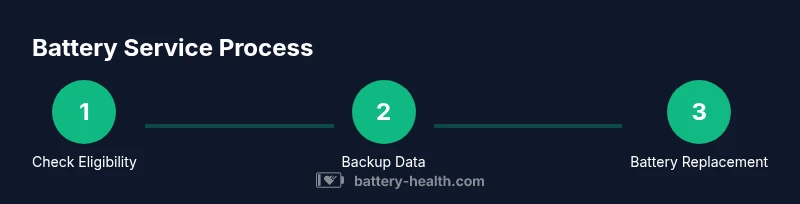
Check eligibility and determine coverage
Before booking, verify whether your device is covered by AppleCare+ or qualifies for any warranty-based battery service. Review the latest Apple policies and confirm the service type so you know what to expect in terms of cost and turnaround.
Tip: Have your device serial number ready to speed up eligibility checks. - 2
Back up your data
Back up all essential data to iCloud or a local computer. A battery replacement can involve device resets or software updates, so a current backup minimizes data loss risk.
Tip: Turn on iCloud backup or perform a full iTunes/Finder backup prior to the appointment. - 3
Schedule the appointment
Use the Apple Support app or Apple’s online booking system to select Battery Service or Genius Bar. Choose a time window that minimizes disruption and confirm what documents you’ll need to bring.
Tip: Choose a time when you can stay for the estimated service window. - 4
Prepare documents and device condition
Bring proof of purchase (if available) and any AppleCare+ documentation. Ensure the device screen and ports are accessible for inspection and diagnostic tests.
Tip: Remove any SIM cards and disconnect nonessential peripherals to speed check-in. - 5
Attend the appointment and review diagnostics
At the store, staff will run diagnostics, confirm replacement eligibility, and present a cost and turnaround estimate. Sign off on the plan before work begins.
Tip: Ask for a written quote and an itemized service summary. - 6
Post-service validation
Power the device, test basic functions, and verify battery health readings. Request instructions for calibration and any post-service care tips.
Tip: Keep the receipt and note the new battery health percentage for future reference.
FAQ
Is battery replacement at Apple Store covered by AppleCare+?
Yes, AppleCare+ may cover battery service for eligible devices. Coverage details vary by device and policy terms, so confirm at the appointment.
Yes, AppleCare+ can cover battery service for eligible devices. Confirm your coverage when you book.
Do I need to back up my data before service?
Backing up data is strongly advised. While Apple strives to protect information, a backup ensures you don’t lose important files during the process.
Yes, back up your data before the service to prevent potential loss.
How long does a battery replacement typically take?
Turnaround varies by device and queue length. Most customers experience a same-day service window, but in some cases it may extend to the next business day.
Turnaround depends on device and stock; many customers complete the service the same day.
Will my data be preserved after replacement?
In most cases, data remains intact. However, factory resets or software updates can affect data, so backups are essential.
Data is usually preserved, but back up to be safe.
Should I remove accessories or SIM cards before my appointment?
Yes, remove nonessential accessories and take out the SIM card if requested by staff to speed up check-in and diagnostics.
Yes, remove nonessential accessories and SIM if advised.
Watch Video
Quick Summary
- Check eligibility before booking the appointment.
- Back up data to protect against loss.
- Ask for a written quote and service summary up front.
- Expect official parts and trained technicians at Apple Store.
- Verify post-service battery health and calibration.