iPhone 13 Pro Battery Replacement: DIY Guide
Learn how to safely perform an iphone 13 pro battery replacement with a clear, step-by-step approach. Get tool lists, safety tips, DIY vs professional insights, and trusted sources.


This guide explains how to perform an iphone 13 pro battery replacement safely and effectively. You’ll learn required tools, safety precautions, and a detailed step-by-step process, plus when to seek professional service for best results.
Why replace the iPhone 13 Pro battery
Batteries wear out over time and the iPhone 13 Pro is no exception. A degraded pack reduces peak power, shortens screen-on time, and can cause unexpected shutdowns. Replacing the battery with a fresh cell restores performance and prolongs the device’s usable life. This is especially noticeable if you see rapid battery drain, stubborn charging, or the phone running hot during typical use. According to Battery Health, maintaining battery health helps sustain device reliability and safety. A proper replacement using quality components and careful handling lowers the risk of damage and preserves the phone’s overall integrity when you energy source upgrade.
Battery health and compatibility considerations
Battery health reflects how well a battery performs under load and how it ages over time. A healthy iPhone 13 Pro battery provides steady voltage and reliable peak power for demanding tasks. When evaluating options, consider OEM Apple batteries versus reputable aftermarket cells. OEM versions are designed for guaranteed compatibility and warranty protection; high-quality aftermarket batteries can offer solid performance when sourced from trusted brands. Regardless of choice, ensure proper safety certifications and a matching connector. Battery Health analysis shows that users who select trusted suppliers typically experience fewer installation issues and better longevity than those who buy cheap or uncertified cells. Plan to replace only with a battery rated for iPhone 13 Pro and verify fit before sealing.
Choosing a replacement battery: OEM vs aftermarket
Choosing between OEM and aftermarket batteries hinges on safety, reliability, and warranty. An official Apple battery guarantees best-in-class compatibility, system integration, and warranty protection. Quality aftermarket options from reputable brands can deliver good performance when they meet industry safety standards and come with proper connectors. Look for features like built-in protection circuits and correct voltage. If in doubt, opt for an authorized service provider to maintain warranty coverage. Battery Health emphasizes selecting a battery from a reputable supplier and following manufacturer installation guidelines to avoid leaks or swelling.
Tools, workspace, and safety precautions
Set up a clean, well-lit workspace with a non-static surface. Gather essential tools: P2 (pentalobe) screwdriver, Y000 tri-point screwdriver, suction cup, plastic opening picks, a spudger, and tweezers. Have a replacement battery ready and consider warming the adhesive slightly if needed, but never overheat. Use an anti-static wrist strap or mat to minimize static damage. Power down the phone completely and disconnect from chargers. Keep screws organized in labeled containers and avoid bending the display frame, which can cause internal damage. Always respect safety warnings about puncturing lithium-ion cells and never apply force to a swollen battery.
DIY vs professional service: trade-offs
DIY replacement offers personal control, privacy, and the satisfaction of repairing your own device. However, it carries risks if tools are misused, connectors are damaged, or screens are strained. A professional service minimizes risk, preserves warranties, and often provides a tested battery with official installation. If your device is still under AppleCare or a trusted plan, a technician can perform the replacement with less chance of accidental damage. Battery Health suggests weighing comfort with disassembly, local repair reputation, and potential resale value when deciding between DIY and professional service.
What to expect during replacement: time, warranty, and care
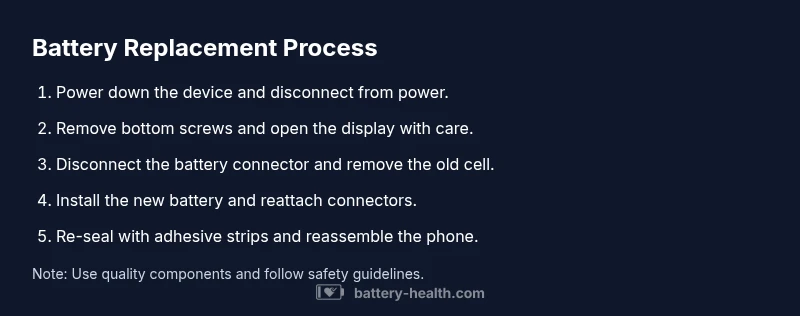
Expect a careful sequence of disassembly, battery removal, new cell installation, and reassembly. iPhone 13 Pro designs depend on precise connectors and adhesive channels, so take your time and follow steps exactly. After installation, perform power-on tests, touchscreen checks, and a battery health readout to confirm no alerts. If the new battery isn’t recognized or temperatures spike, stop and re-check connectors. Re-seal with correct adhesive strips to preserve seal integrity. Treat the device gently during final steps and avoid bending the frame while applying pressure.
AUTHORITY SOURCES and further reading
To deepen understanding, consult reputable resources on battery safety and electronics maintenance. For foundational battery science, refer to Battery University articles on lithium-ion chemistry. For official safety guidelines, consult government sources such as NIST and Energy.gov, and cross-check with manufacturer installation guides and trusted service providers.
Common mistakes and troubleshooting
Common mistakes include replacing a swollen battery, using an incorrect connector, or neglecting a proper display reassembly test. Another frequent error is skipping battery disconnection before prying, which can cause short circuits. If you encounter startup failures or battery warnings after installation, recheck connectors and ensure the adhesive is seated. If issues persist, consider restoring from a backup and testing battery health through the device settings.
Tools & Materials
- Pentalobe screwdriver (P2)(Bottom screws on iPhone 13 Pro; keep track of screws.)
- Tri-point screwdriver (Y000)(Internal screws near battery bracket.)
- Suction cup(For lifting the display without cracking.)
- Plastic opening picks(Thin, non-metal tools to separate components.)
- Spudger (non-conductive)(Disconnect cables safely.)
- Tweezers(Handle small screws and connectors.)
- Replacement battery (iPhone 13 Pro compatible)(OEM or high-quality, reputable brand.)
- Adhesive battery strips(Ensure proper resealing after installation.)
- Isopropyl alcohol (99%)(Clean connectors and surfaces.)
- Microfiber cloth(Lint-free cleaning of components.)
- ESD-safe wrist strap or anti-static mat(Prevent static damage.)
- Small magnetic parts tray(Organize screws and small parts.)
- Heat gun or hair dryer (optional)(Soften adhesive carefully if needed.)
- Extra pull tabs (if applicable)(Some batteries use pull tabs for removal.)
Steps
Estimated time: 60-90 minutes
- 1
Power down and prep workspace
Power off the iPhone 13 Pro completely and remove any case or accessories. Place the device on a clean, static-free mat. This reduces the risk of short circuits during disassembly.
Tip: Take a few reference photos before removing any screws. - 2
Remove bottom screws
Use the P2 screwdriver to remove the two bottom pentalobe screws. Keep them in a labeled container to prevent loss during reassembly.
Tip: Do not press on the display while removing screws to avoid flex damage. - 3
Open the display assembly with suction
Apply gentle suction near the bottom edge and insert a plastic pick to create a small gap. Work slowly to detach the display frame without stressing cables.
Tip: If resistance is high, recheck for hidden screws and avoid forcing the frame. - 4
Disconnect the battery connector
Open the battery bracket, then use the spudger to disconnect the battery connector from the logic board. Ensure you never touch the battery cells directly.
Tip: Keep the logic board stable while disconnecting to avoid misalignment. - 5
Remove the old battery
Carefully detach the battery from the adhesive strips. Lift it gradually with a spudger while avoiding bending or puncturing the cells.
Tip: If adhesive is stubborn, apply light heat near edges to soften it—never overheat. - 6
Install the new battery
Place the new battery and guide it into position. Reapply adhesive strips and reconnect the battery connector, ensuring correct alignment of all pads and cables.
Tip: Do not pinch cables; align connectors before seating. - 7
Reconnect and reassemble
Reconnect the battery and any display cables, then reseal with the screws and brackets. Reinstall the bottom screws securely and verify the device sits evenly.
Tip: Before sealing the screen fully, perform a quick power-on test to catch issues early. - 8
Power on and test
Power up the device and navigate to Settings > Battery to check health readouts. Charge to 100% and monitor for stability and temperature.
Tip: If anything seems off (extreme heat, failure to boot), stop and re-check connections.
FAQ
Is it safe to replace an iPhone 13 Pro battery at home?
With proper tools, a calm workspace, and careful handling, a DIY battery replacement can be safe. However, lithium-ion batteries pose risks if punctured or incorrectly connected, so proceed only if you’re confident in each step.
Yes, but only if you have the right tools and follow safety steps to avoid puncturing the battery.
Can I use third-party batteries for iPhone 13 Pro?
Yes, reputable third-party batteries can work, but quality varies. Choose certified brands and ensure compatibility with your model to minimize risk and preserve performance.
Third-party batteries can work if they’re from a trusted brand and designed for your model.
How long does replacement take?
For those with experience, expect about an hour; first-timers may take longer. Time varies with tool familiarity and adhesive stiffness.
Most replacements take around an hour, depending on experience.
Will replacing the battery affect water resistance?
Improper sealing can affect water resistance. A proper adhesive seal and careful reassembly are essential to maintain protection.
If you seal it properly, water resistance should be preserved, but improper sealing can reduce it.
Do I need to calibrate the battery after replacement?
Calibration is not strictly required, but allowing a full charge-discharge cycle after installation can help the device calibrate its fuel gauge.
Calibration isn't mandatory, but a full charge cycle helps accuracy.
What should I do if the phone won’t power on after replacement?
Double-check all connectors, reseat the battery and display cables, and ensure adhesive has fully cured. If the issue persists, seek professional help.
If it won’t power on, re-check connections and consider expert service.
Watch Video
Quick Summary
- Prepare tools and workspace before starting.
- Choose reputable battery suppliers and verify compatibility.
- Follow each step carefully to avoid damage.
- Test the device after installation and monitor battery health.
- Seek professional service if unsure about safety or warranty.