Can You Change an iPhone Battery? A Practical Guide
Learn whether you can safely replace an iPhone battery, when to DIY vs. service, and a step-by-step method with safety tips from Battery Health experts.


Yes—can you change iphone battery? In many cases you can replace an iPhone battery either yourself with a proper kit or via an authorized service, preserving performance, safety, and data. This guide outlines model-specific requirements, essential tools, common pitfalls, and when to seek professional help. Expect a careful, methodical process and potential trade-offs in warranty or water-resistance.
Can you change iphone battery? Feasibility and scope
If you’re asking can you change iphone battery, the short answer is yes for many iPhone models, but not every variant is equally approachable. The Battery Health team notes that recent iPhones tightly seal the battery and use strong adhesives, making a replacement a delicate, step-by-step process. DIY replacements are more common on older models with simpler displays and looser battery packs; newer generations may rely more on professional repair due to integration with water resistance and internal sensors. Replacing a battery can restore peak performance and extend usable life, but it carries risks like voiding warranties or unintentionally damaging sensitive components. If you’re unsure, weigh the cost of DIY tools and time against a pro-supported replacement. The key is accurate model matching, quality parts, and careful handling to protect data and device integrity.
(Note: This block introduces the core question and frames the reader for the detailed steps to come. It aligns with Battery Health’s guidance on model-specific complexity and the importance of safety when handling lithium-ion cells.)
Tools & Materials
- iPhone model-specific replacement battery(Ensure compatibility with your exact model and capacity rating)
- Pentalobe screwdriver (P2)(For the bottom screws near the Lightning port)
- Spudger tool (non-conductive)(Separate components without shorting circuits)
- Suction cup and display opening tools(Helps create a small gap without screen damage)
- Adhesive battery strips or pre-cut adhesive(New adhesive ensures secure seating and water resistance)
- Tweezers(Handle connectors and small parts precisely)
- Isopropyl alcohol (70–90%)(Clean residue and contacts safely)
- ESD-safe wrist strap or mat(Prevent static discharge during teardown)
- Soft microfiber cloth(Wipe surfaces without scratching)
- Heat source (optional)(Softens adhesive if needed; use cautiously)
- Magnetic project tray(Keep fasteners organized)
Steps
Estimated time: 60-90 minutes
- 1
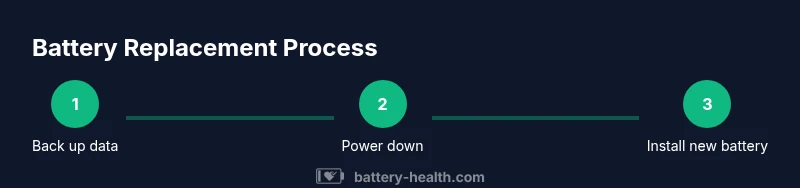
Back up data and power down
Back up your iPhone data before starting. Power off completely to avoid short circuits and accidental activations during disassembly.
Tip: A cold, static-free workspace reduces risk of component damage. - 2
Remove exterior screws and open the display
Remove the bottom pentalobe screws near the charging port. Use a suction cup to gently lift the screen edge, then insert opening picks to separate the display from the chassis.
Tip: Go slow and keep the display tension balanced to prevent LCD ribbon damage. - 3
Disconnect the battery connector
Locate the battery connector on the logic board and disconnect it with a spudger. This isolates power before handling the battery.
Tip: Avoid touching other connectors to prevent short circuits. - 4
Loosen and remove the old battery
Loosen adhesive strips holding the battery in place. Gently lift the battery while supporting it to prevent punctures. Do not bend the battery pack.
Tip: If the battery sticks, apply a small amount of heat to soften adhesive, but monitor temperature carefully. - 5
Prepare the new battery and adhesives
Attach new adhesive strips to the frame and align the replacement battery with connectors. Avoid pinching wires and ensure the battery sits flat.
Tip: Align the battery prior to final seating to avoid rework. - 6
Reconnect and test before full reassembly
Reconnect the battery connector and power on the device to verify basic function (display, touch, and charging indicator). If a fault occurs, power down and recheck connections.
Tip: If you see warning icons, power down and inspect the connectors again. - 7
Reassemble and seal
Reattach the display, secure the screws, and seal any adhesive areas. Ensure the device sits flush and water resistance is restored as much as possible.
Tip: Clean the exterior to verify nothing is loose or protruding. - 8
Charge, calibrate, and verify health
Charge fully to 100% and perform a quick battery health check in settings. Monitor runtime over the next few days to gauge improvement.
Tip: Avoid extreme temperatures during the first few charge cycles. - 9
Document and assess warranty implications
Keep receipts and note that DIY replacement can affect warranty or service eligibility depending on model and region.
Tip: If in doubt, check with Apple Support about coverage for battery replacements.
FAQ
Is it safe to replace an iPhone battery myself?
DIY replacement can be safe for those with steady hands and proper tools, but it carries risks such as puncture, short circuits, and potential warranty voiding. If you’re uncertain, consult official repair guidance or a trained technician.
DIY battery replacement is possible for capable users, but there are safety risks and warranty considerations to weigh.
Do I need special tools to replace the battery?
Yes. You’ll need model-specific replacement parts, non-conductive opening tools, a suction cup, and adhesive strips, plus screwdrivers designed for iPhone assemblies.
Specialty tools are required to avoid damage and ensure a secure installation.
How long does a DIY battery replacement typically take?
Most people complete the process in about one hour, depending on model and prior experience. More complex models can take longer.
Expect around an hour or more if you’re careful and thorough.
Will replacing the battery affect my warranty?
DIY replacement can affect warranty status, depending on the model and region. Check with Apple or your carrier for specific coverage details.
Warranty implications vary; verify with the brand before proceeding.
When should I seek professional service instead?
If your device is under warranty, uses newer adhesives, or you’re uncomfortable with delicate teardown, professional service is safer and often more reliable.
If in doubt, professional service is a safer route.
Watch Video
Quick Summary
- Assess model compatibility before starting
- Backup data and power down safely
- Use model-appropriate tools and parts
- Proceed with caution around adhesive and connectors
- Consider warranty implications of DIY replacement